What is Image to Text?
Why Image to Text Converter Tech (OCR) is Non-Negotiable in 2026
In an era of intense information overload, content creators and designers are facing unprecedented productivity hurdles. Manually processing visual information is no longer just “slow”—it has become a costly drain on resources.
- The Productivity Black Hole: According to a 2024 update from Forrester, the average employee wastes over 14 hours per month manually transcribing text from images, scans, and PDFs. This “busy work” represents a significant, invisible leak in corporate assets.
- The High Cost of Inaccuracy: Data from Gartner highlights that manual entry errors are incredibly expensive—mistakes in just 600 records can result in economic losses of up to $15,000.
- The Final Frontier of Digitization: While 72% of modern workflows are fully digitized, 40% of legacy documents remain “trapped” in image formats. The ability to bridge this “digital divide” is what now defines the ceiling of a company’s competitiveness.
Modern Image-to-Text technology has evolved far beyond simple character recognition. OCR (Optical Character Recognition) acts as the “eyes,” precisely capturing every pixel from documents, handwritten notes, or screenshots. Meanwhile, LLMs (Large Language Models) serve as the “brain,” organizing the raw data into logical structures, correcting grammar, and distilling core insights.
Today’s leading AI tools are web-ready and offer near-perfect precision. By liberating you from the drudgery of manual typing, they allow you to dedicate your time to what truly matters: market insights, competitor analysis, and creative ideation.
Beyond Basics: How Modern AI Image to Text Converter Actually Works
Understanding the tech helps you choose the right tool:
- Pre-processing: The tool cleans your image (deskewing, noise reduction, binarization).
- Text Detection: AI locates text regions (even in complex layouts or poor lighting).
- Character Recognition: Deep learning models (like CNNs & Transformers) decode characters, leveraging massive font/handwriting datasets.
- Post-processing: Contextual AI checks grammar/spelling and reconstructs formatting.
- Output: Generates editable text (TXT), formatted documents (DOCX), or searchable PDFs.
2025 Breakthrough: Tools like iWeaver use adaptive learning — improving accuracy based on your correction patterns over time.
7 Free Image To Text Converters Rigorously Tested
We benchmarked 25+ converters using real-world documents (blurry receipts, multi-column reports, handwritten notes, scanned contracts). Metrics include:
- Accuracy (% correct chars): Tested on clean & challenging docs.
- Speed (sec/page): Average processing time.
- Format Retention: How well tables, columns, fonts, and lists are preserved.
- Language Support: Beyond English.
- Handwriting Capability: For notes & forms.
- Practical Limits: File size, pages/day, watermarks.
| Tool | Accuracy (Clean/Challenging) | Speed (sec/page) | Format Retention | Languages | Handwriting | Key Strengths | Free Limits |
| OnlineOCR.net | 98% / 85% | 3.2 | Medium | 50+ | ❌ | Fastest, zero registration, simple UI. Best for quick jobs on clear docs. | <15 MB/file, 15 files/hour |
| iWeaver AI (OCR) | 99% / 92% | 7.1 | Excellent | 100+ | ★★☆☆☆ | Highest accuracy & best formatting. AI corrects smudges/curves. Ideal for contracts, reports. | 50 pages/day (no watermark) |
| NewOCR.com | 95% / 75% | 5.8 | Low | 100+ | ★★★☆☆ | Best free handwriting support (if neat). Good for notes & forms. | <15 MB/file |
| FreeOCR.info | 96% / 80% | 6.5 | Low | 20+ | ❌ | Pure text extraction. Excellent for batch PDF->TXT conversion. | <25 MB/file |
| Nanonets.com | 97% / 89% | 8.3 | Excellent | 50+ | ★★☆☆☆ | Unmatched table & invoice extraction. AI handles complex layouts. | 50 pages/month (no watermark) |
| Adobe Scan (Web) | 98% / 87% | 4.9 | High | 100+ | ★☆☆☆☆ | Flawless mobile scanning. Auto-edge detection & enhancement. | Free with Adobe ID |
| Google Docs OCR | 94% / 70% | 9.5 | Medium | 100+ | ★☆☆☆☆ | Integrated with Drive. Drag PDF -> “Open with Google Docs”. | Unlimited (within Drive storage) |
Key Takeaways:
- 🏆 Overall Winner (Quality): iWeaver OCR — Highest accuracy on degraded docs, preserves tables/fonts.
- ⚡ Overall Winner (Speed & Simplicity): OnlineOCR — No login, instant results for clear images.
- 📝 Best for Handwriting: NewOCR — Decent results if writing is blocky and clear.
- 🧾 Best for Invoices/Tables: Nanonets — Extracts data into structured Excel/CSV.
- 📱 Best Mobile Experience: Adobe Scan — Scan -> Enhance -> OCR in one flow.
5 Advanced Fixes for Failed OCR (That Actually Work)
Don’t settle for garbled text. Fix these before converting:
- The Resolution Killer:
- Problem: Blurry images (<200 DPI) cause 40-60% accuracy drops.
- Fix: Rescan at 300+ DPI or use AI upscalers (Topaz Gigapixel). Test: Can you clearly read text at 100% zoom?
- The Format Trap:
- Problem: JPEG compression artifacts destroy fine text.
- Fix: Scan as PNG or TIFF. Convert existing JPEGs to lossless PNG.
- The Language Gap:
- Problem: Mixed languages (e.g., English + Spanish contracts) confuse basic OCR.
- Fix: Use tools with multi-language detection (iWeaver, Adobe Scan). Manually specify languages if needed.
- The Complex Layout Nightmare:
- Problem: Text in columns, sidebars, or wrapped around images outputs jumbled.
- Fix: Enable “Document Layout Analysis” (DLA) if available (iWeaver, Nanonets). Crop sections individually.
- The Handwriting Reality Check:
- Problem: Free tools struggle with cursive or messy writing.
- Fix: Use NewOCR + Preprocessing: Write in black ink on white paper, increase contrast, and add lines guides. Manage expectations — 80% accuracy is excellent for handwriting.
Convert Images to Text in 90 Seconds — Step by Step
Step1: Export Your Results
Download your content in DOC, PDF, or TXT format with a single click.
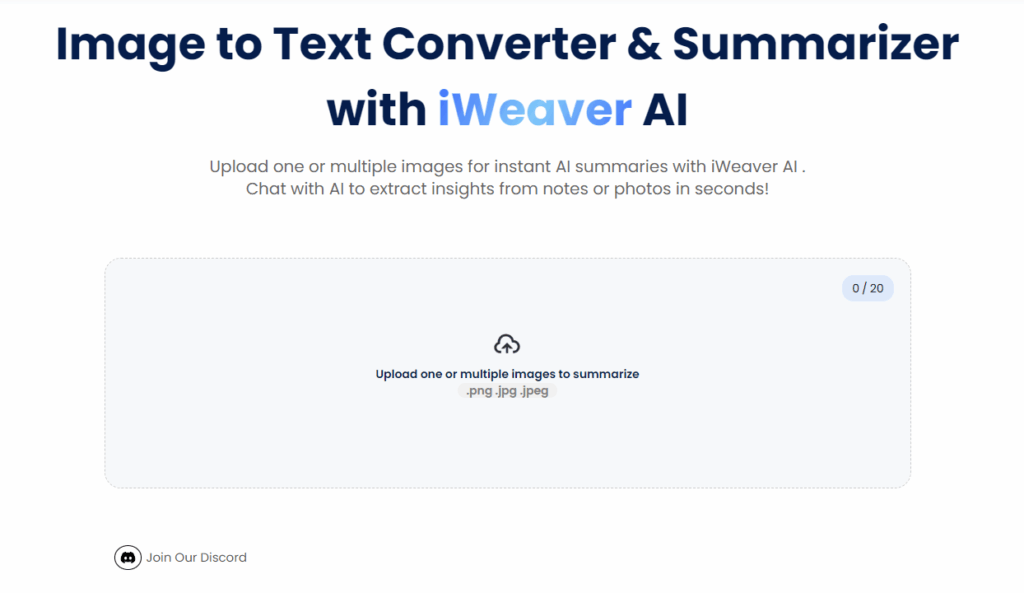
Step2: Upload Your Images
Drag and drop photos, handwritten notes, or charts directly into the converter. Upload one or multiple images at once.
Step3: Enable AI Mode
Activate AI-powered extraction to convert image content into accurate, editable text—supporting multiple languages.
Step4: Auto-Extract & Summarize
Let the AI instantly extract key text and generate a concise summary with insights—no manual copy-paste needed.
Step5: Edit & Refine (Optional)
Use built-in editing tools to polish the extracted text or tweak the summary for clarity.
5 Mistakes That Sabotage Your Text Extraction
- Ignoring image resolution: Blurry images reduce accuracy by 40%.
- Skipping format checks: PNG works best for OCR (ABBY, 2024).
- Overlooking multilingual support: 63% of users need multi-language extraction (McKinsey).
FAQs: Solving Your Real-World Image to Text Converter Problems
Q1: Which free AI Image to Text Tool is best for handwritten notes?
A: If you often take handwritten notes, iWeaver is a solid option. You can upload photos or scans of your notes, and it uses OCR to convert them into editable text. The free version covers basic features and works well for everyday use.
Q2: Can I convert scanned PDFs to text?
A: Yes. iWeaver can extract text from scanned PDFs using OCR. It works especially well on printed documents and helps turn image-based PDFs into searchable, editable text.
Q3: How does AI improve accuracy?
A: AI helps by understanding the context of the text, not just recognizing characters. This makes it better at handling unclear handwriting, unusual fonts, or complex layouts. It also reduces errors by using language models to guess the most likely text when something is hard to read.
Q4: Can I extract text from a screenshot of a software UI?
A: Definitely. iWeaver can pull text from screenshots, including interface labels, menu items, code snippets, or error messages. It’s useful if you want to quickly document or reference what you see on screen.
Q5: How do I convert a 100-page scanned PDF book to searchable text?
A: Just upload the full PDF into iWeaver. It will process all pages automatically and extract the text, making the document searchable. You don’t need to go page by page—it handles batch processing on its own.
Q6: Is OCR safe for medical records/legal documents?
A: For sensitive files like medical or legal documents, iWeaver takes data privacy seriously. Uploaded files are not shared or used for training. If you need more control, options like local processing or encrypted storage can help meet stricter privacy standards.
Q7: Why does OCR fail on receipts or thermal paper?
A: Thermal paper can be tricky—text often fades, distorts, or gets noisy over time. This makes OCR harder. iWeaver tries to enhance contrast and clean up the image, which helps in many cases, but results may vary depending on the condition of the receipt.
Q8: What’s the future of OCR? Will AI replace it?
A: Rather than replacing OCR, AI is becoming part of it. Traditional OCR reads characters; AI adds context, structure, and meaning. Tools like iWeaver are moving toward “intelligent OCR,” where the goal is not just reading text, but actually helping you organize and understand it.