

iWeaver provides a free trial of GPT-6.1 Sol, so you can test the new model on real work without starting with an API integration. The most useful trial is not a collection of trivia questions. Give the model a task that reflects how you actually research, write, analyze documents, or solve problems.
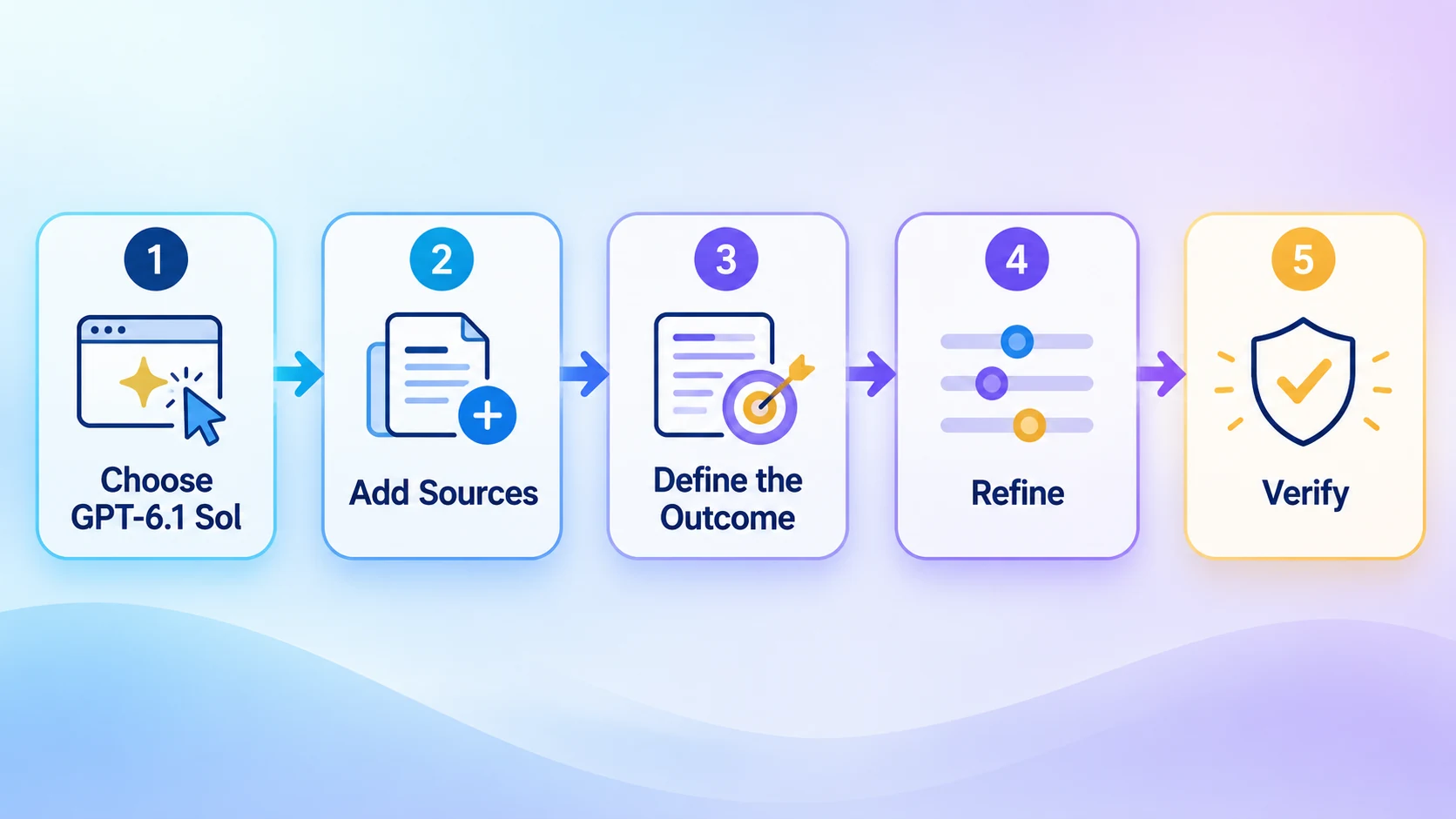
This guide shows a simple workflow: choose GPT-6.1 Sol, add useful context, define the result you need, then check the answer before using it.
What You Need Before Starting
Choose one task with a clear outcome. Good trial tasks include:
- Summarizing a long report for a specific audience.
- Comparing several papers without mixing their findings.
- Turning meeting notes into decisions and next actions.
- Reviewing a draft and identifying unsupported claims.
- Analyzing a technical document or debugging plan.
Prepare the source material that matters and decide what a successful output looks like. For example, “summarize this PDF” is vague. “Create a 500-word executive brief with the five main findings, supporting page references, unresolved risks, and three next actions” gives the model a usable target.
Step 1: Open iWeaver and Choose GPT-6.1 Sol
Go to iWeaver and start the GPT-6.1 Sol free trial. Select GPT-6.1 Sol where the model choice is shown in the workspace.
The free trial is the access point for evaluating the model. Exact availability and trial conditions are displayed in iWeaver, so use the current product interface as the source for account-specific details.
Step 2: Add the Right Context
Paste the relevant text or add the source material needed for the task. GPT-6.1 Sol supports a context window of 1,050,000 tokens, but a large capacity does not remove the need for good source selection.
Avoid adding unrelated files just because they fit. Extra material can make the task less focused. If several sources disagree, label them clearly and ask the model to preserve those differences rather than forcing a single conclusion.
For research or document work, a useful instruction is:
Use only the supplied sources for factual claims. Identify the source for each major conclusion, separate evidence from inference, and list any question the material cannot answer.
Step 3: Write a Prompt Around the Outcome
A strong prompt defines five things:
- Task: What should the model do?
- Audience: Who will use the result?
- Sources: Which material should it rely on?
- Output: What structure and length do you need?
- Checks: What should it verify or flag?
Here is a reusable example:
Review the attached reports and create a decision brief for a product manager. Compare the three proposed approaches by cost, implementation difficulty, expected benefit, and evidence quality. Cite the relevant source section for each major claim. Flag missing information instead of estimating it. End with a recommendation and the conditions that could change it.
This works better than asking GPT-6.1 Sol to “analyze everything” because it gives the model explicit decision criteria.
Step 4: Use Follow-Up Prompts to Improve the Result
Do not restart the whole task when the first answer needs work. Continue in the same workspace and make the correction specific.
Useful follow-ups include:
- “Show which source supports each number in the table.”
- “Separate confirmed facts from your interpretation.”
- “Rewrite the recommendation for a nontechnical reader.”
- “Find contradictions between the first and third documents.”
- “Shorten this without removing qualifications or evidence.”
GPT-6.1 Sol is designed for complex professional work, so it is most valuable when the conversation moves from a broad first pass to a checked, reusable deliverable.
Step 5: Verify Before You Reuse the Answer
Check every important quotation, figure, citation, and conclusion against the original material. Run generated code and inspect spreadsheet formulas. If the model used web information, check the publication date and whether the linked page supports the wording.
A polished answer can still contain an error. Your review should focus on the parts that would cause the greatest harm if they were wrong: decisions, numbers, legal or policy statements, technical instructions, and claims about other people or organizations.
Three Good Ways to Test GPT-6.1 Sol
Long-Document Analysis
Provide a report or paper and request a structured summary with evidence locations, limitations, and follow-up questions. This tests whether the model can keep a long source grounded.
Multi-Source Research
Add several sources and ask for agreements, disagreements, and missing evidence. This is more revealing than asking for a general overview because you can check whether the model preserves the differences.
Professional Writing From Sources
Ask the model to turn notes and reference material into an executive brief, research outline, comparison, or action plan. Specify the audience and decision the document must support.
Get More Value From the Free Trial
Use the GPT-6.1 Sol free trial in iWeaver on a representative task, not a disposable prompt. Record the original input, the prompt, the output, the corrections you needed, and the final review time. That gives you a practical measure of quality and effort.
Start the GPT-6.1 Sol free trial and test it with work you already know well. If it produces an accurate, usable result with less correction, you have a credible reason to add it to your workflow. For another model-specific walkthrough, see how to use GPT-6 Astra free in iWeaver.