
AI Webinar Summarizer for Key Takeaways
Turn long webinar recordings into a structured recap of key takeaways, audience Q&A, open questions, and follow-up points. Upload a recording or add a supported video link, then ask iWeaver about the parts that matter.
How to Summarize a Webinar with AI
Upload the Webinar Recording
Upload the recorded session or add a supported video link. Include the Q&A portion when you want audience questions and presenter responses reflected in the recap.
Generate a Structured Summary
Let iWeaver organize the session into key takeaways, discussion points, and questions. Start with the overview, then ask for more detail on the topics you care about.
Review Important Details
Check names, numbers, quotations, and important claims against the recording before sharing. Keep unresolved questions visible instead of turning them into assumed conclusions.
Why Choose iWeaver Webinar Summarizer?
Capture the Key Takeaways
Get a focused view of the session’s main ideas before revisiting the full recording. Keep the presenter’s reasoning and important conditions attached to each takeaway.
Review Q&A in Context
Pull audience questions and presenter responses into the recap when they are part of the source. This makes exceptions, concerns, and practical limitations easier to spot.
Ask Follow-Up Questions
Continue exploring the webinar in iWeaver after the first summary. Ask about a definition, example, recommendation, or discussion point that needs a closer look.
Keep Open Questions Visible
Separate what the webinar actually answered from what remains unclear. That helps prevent missing information from being turned into an unsupported assumption.
Build a Recap for Team Review
Turn the recording into a readable reference for colleagues, training, research, or follow-up. Keep presenter recommendations separate from decisions your team makes later.
What Should a Webinar Summary Include?
A useful recap does more than shorten the recording. It keeps the main message, Q&A, unresolved points, and follow-up context easy to review.
Session Overview
The topic, purpose, and central point of the presentation.
Key Takeaways
The ideas most relevant to your goal, with enough context to understand why they matter.
Questions & Answers
Audience questions captured in the source and the answers the presenter actually gave.
Open Questions
Points that were not answered, need another source, or require a decision outside the webinar.
Follow-Up
Resources, recommendations, or next steps mentioned in the session, clearly separated from your own actions.
Verification Notes
Check names, numbers, quotations, speaker attribution, and timestamps when they are available before sharing the recap.
Webinar Summary Use Cases
Professional Learning
Review a skills webinar before your next practice session. Keep the explanations and examples you want to try, and note where you need further instruction.
Summarize Training Webinar
Vendor Evaluation
Prepare notes from a vendor’s product webinar for an internal discussion. Separate demonstrated capabilities from general claims, and list questions to ask before making a decision.
Review Vendor Webinar
Event Follow-Up
Use your own webinar recording to prepare a recap for attendees. Review the questions that came up and identify answers or resources your team still needs to provide.
Create Attendee Recap
Industry Research
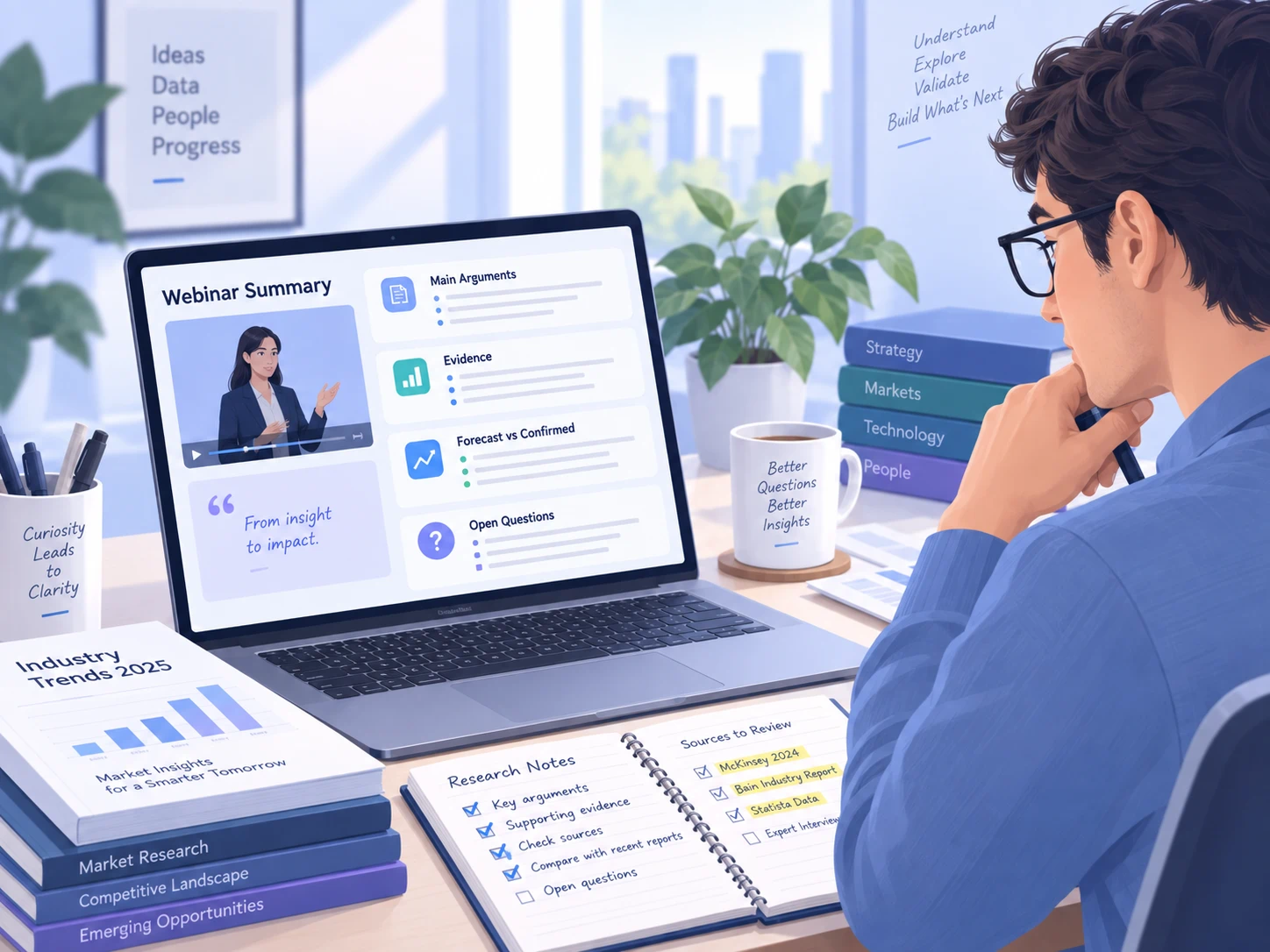
Capture the arguments made in an expert session. Check the evidence behind significant claims and distinguish a presenter’s forecast from an established result before using it in a report.
Summarize Expert SessionExplore Related Agents
Webinar Summarizer FAQ
Turn Your Next Webinar into a Clear Recap
Upload the recording, capture the takeaways and Q&A, then review the details before sharing your recap with the team.
Summarize Webinar