
Comparing two PDFs manually can be frustrating, especially when the documents are long or the changes are scattered across different pages.
You may need to compare two versions of a contract, two research papers, updated policies, financial reports, or business documents. Instead of reading both files page by page, you can use iWeaver Compare PDF to analyze them together and quickly identify what changed.
This guide shows you how to compare PDFs with iWeaver and why AI-assisted PDF comparison can make document review much faster.
How to Compare PDFs with iWeaver
Using iWeaver to compare PDFs only takes a few steps.
Step 1: Upload the PDF Files
Upload the two PDFs you want to compare.
They can be:
- Two versions of the same document
- Two reports from different periods
- Two research papers
- An original policy and an updated version
- Two contracts or proposals
Step 2: Let iWeaver Compare the Documents
iWeaver analyzes both PDFs together and looks for meaningful differences across the content.
It can help identify:
- Added or removed text
- Changed numbers
- Missing sections
- Updated tables
- Different conclusions
- New requirements
- Changed terminology
- Content that appears in one PDF but not the other
Instead of checking every page yourself, you can immediately focus on the sections where changes actually happened.
Step 3: Review the Key Differences
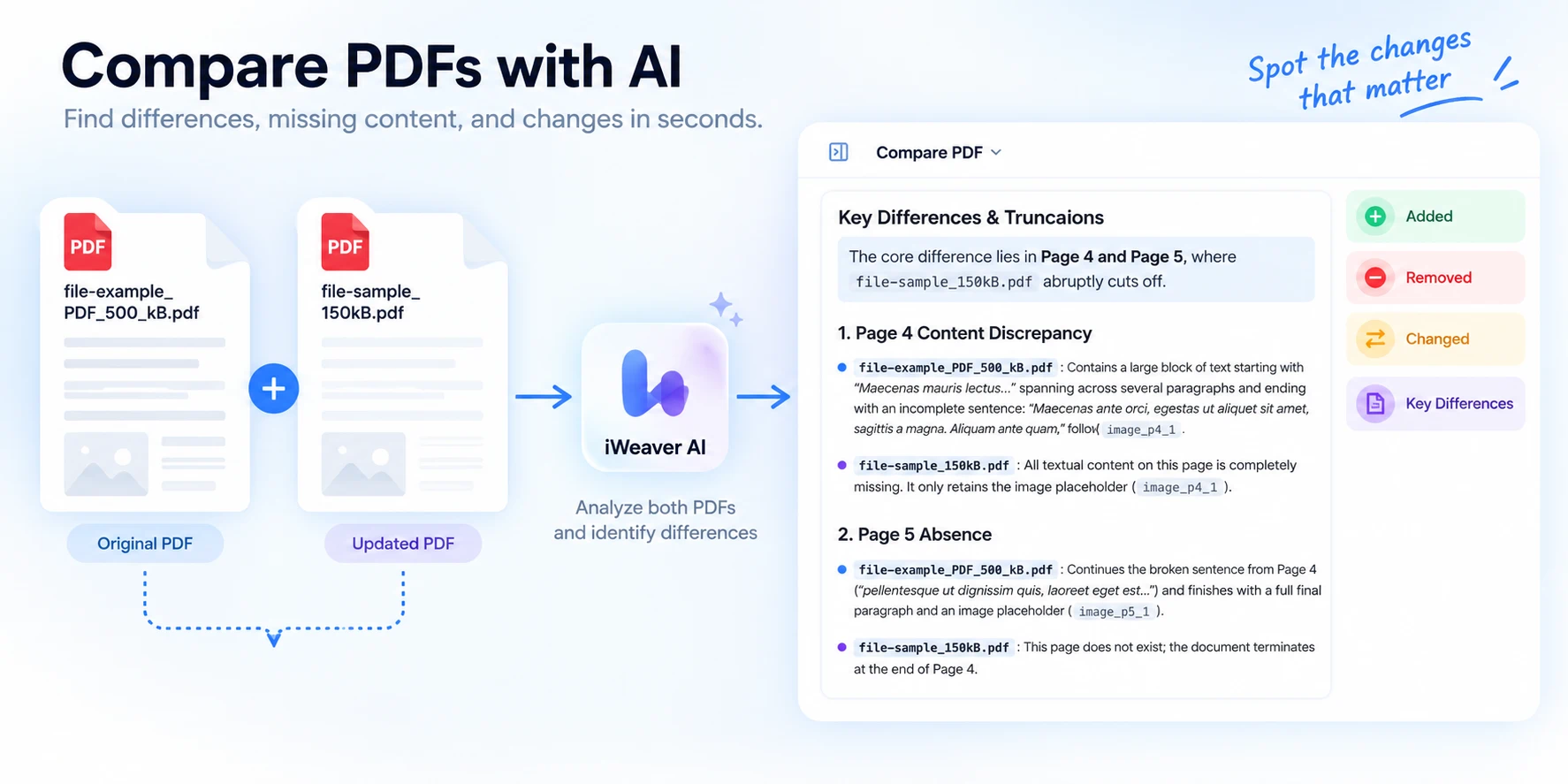
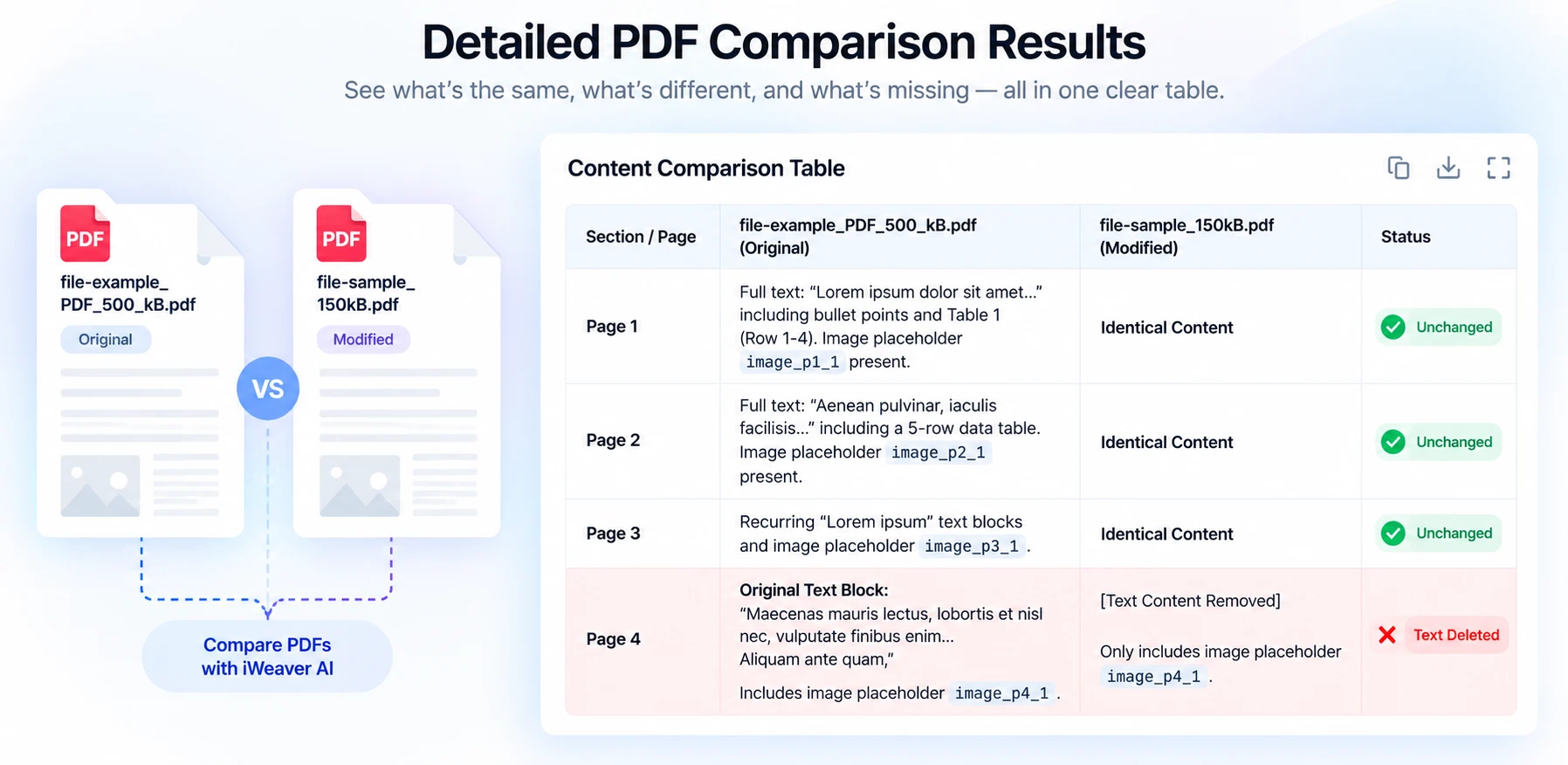
iWeaver can organize the comparison into a clearer structure so you can see which pages or sections are unchanged and which contain differences.
For example, the result may show:
- Key Differences
- Content Discrepancy
- Absence
Step 4: Ask Follow-Up Questions
Finding the difference is only the first step.
You can continue asking iWeaver questions about what changed.
For example:
- What are the most important differences between these PDFs?
- Which numbers changed?
- Which sections were removed?
- Did the revised contract add any new obligations?
- Compare the conclusions of these two research papers.
- Which changes should I pay attention to?
This is one of the biggest advantages of using AI for PDF comparison. You don't just see that something changed—you can also ask what the change means.
Why Use iWeaver to Compare PDFs?
Traditional PDF comparison often focuses on highlighting exact text changes. That can be useful, but in many situations you need more than a red-and-green diff.
You need to understand the document.
Find Important Changes Faster
Long PDFs can contain hundreds of paragraphs, tables, and figures.
iWeaver helps narrow the review down to the parts that actually changed, so you don't have to reread the entire document.
Compare More Than Text
PDF differences aren't limited to sentences.
You may also need to compare:
- Numbers , Dates, Tables, Metrics, Requirements, Findings, Conclusions, Business risks
iWeaver can help analyze these differences as part of the document context.
Understand What the Changes Mean
Consider two contract versions.
Version A: Payment must be completed within 30 days.
Version B: Payment must be completed within 15 days.
A traditional diff tool can highlight 30 and 15.
iWeaver can help you understand that the payment period has been cut in half and may require faster payment processing.
The same applies to reports, research, policies, and other complex documents.
Keep Comparing with Follow-Up Questions
You can move from a broad comparison to a more detailed review.
Start with: Show me the biggest differences.
Then ask: Focus only on financial changes.
Or: Explain the changes on Page 4.
This makes the workflow more flexible than a static comparison report.
Example: Compare Two PDF Reports
Imagine you have two quarterly reports:
PDF 1: Q1 Business Report
PDF 2: Q2 Business Report
Both files contain revenue, KPIs, forecasts, risks, and strategy updates.
Instead of reading both from beginning to end, upload them to iWeaver and ask: "Compare these two reports and show the main changes in revenue, KPIs, forecasts, risks, and strategy."
The result can be organized into a comparison table like this:
| Area | PDF 1 | PDF 2 | Key Change |
|---|---|---|---|
| Revenue | Previous figure | Updated figure | Increased or decreased |
| KPIs | Earlier results | Latest results | Performance changed |
| Forecast | Original outlook | Revised outlook | Expectations changed |
| Risks | Existing risks | Updated risks | New or removed risks |
| Strategy | Previous priorities | Current priorities | Focus shifted |
You can then ask more specific questions:
- Which KPI changed the most?
- What new risks were added?
- Did management lower its forecast?
- What are the five most important changes?
What Types of PDFs Can You Compare?
iWeaver Compare PDF can be useful for many document comparison scenarios.
Contracts
Compare contract versions to find changes in:
- Payment terms
- Deadlines
- Responsibilities
- Renewal conditions
- Termination clauses
Example prompt: "Compare these two contracts and show changes in payment, renewal, termination, and responsibilities."
Important legal documents should still be reviewed by a qualified professional.
Research Papers
Compare:
- Methodology
- Sample size
- Dataset
- Results
- Limitations
- Conclusions
Example prompt: "Compare the methodology, findings, and conclusions of these two research papers."
Financial Reports
Compare:
- Revenue
- Costs
- Profit
- Growth rates
- Forecasts
- KPIs
- Risks
Example prompt: "Compare the financial metrics in these reports and highlight the biggest changes."
Policies and Guidelines
Compare old and updated versions to find:
- New rules
- Removed requirements
- Changed procedures
- Updated definitions
- New exceptions
Example prompt: "What changed in the new policy, and what do I need to do differently?"
Better Prompts for Comparing PDFs
You can get more useful results by telling iWeaver exactly what you want to compare.
Instead of: Compare these PDFs.
Try:List the 10 most important differences between these two PDFs.
Or:Compare all changed financial figures and show them in a table.
Or:Find any text or sections that were removed from the updated version.
Or:Compare the conclusions and recommendations in these two reports.
Or: Show only the differences that would matter to a manager.
The more specific the question, the easier it is to focus on meaningful changes.
PDF Comparison vs. PDF Summary
A PDF summary tells you:What does this document say?
PDF comparison tells you:What changed between these documents?
If you're working with just one PDF, summarization may be enough.
If you're reviewing two versions, two reports, or two related documents, comparison is usually more useful because it focuses directly on the differences.
Compare PDFs Without Reading Everything Twice
You don't need to review two long PDFs page by page just to find what changed.
With iWeaver Compare PDF, you can upload both documents, identify key differences, compare specific sections, and ask follow-up questions about the changes.
This is especially useful for contracts, reports, research papers, policies, and other documents where the meaning of a change matters as much as the change itself.
Frequently Asked Questions
Can iWeaver compare two PDF files?
Yes. You can upload two PDFs and use iWeaver to analyze differences in their content, including text, numbers, sections, tables, and conclusions.
Can I compare two versions of the same PDF?
Yes. This is one of the most common use cases. iWeaver can help identify content that was added, removed, changed, or missing between versions.
Can iWeaver compare research papers?
Yes. You can compare methodology, datasets, findings, limitations, and conclusions across research papers.
Can I compare financial reports?
Yes. You can use iWeaver to compare financial figures, KPIs, forecasts, risks, and management commentary.
Can iWeaver explain what a PDF change means?
Yes. After identifying the differences, you can ask follow-up questions about their meaning, importance, or possible impact.
Should I still check the original PDFs?
Yes. For important legal, financial, regulatory, medical, or other high-stakes information, always verify critical details against the original documents.