
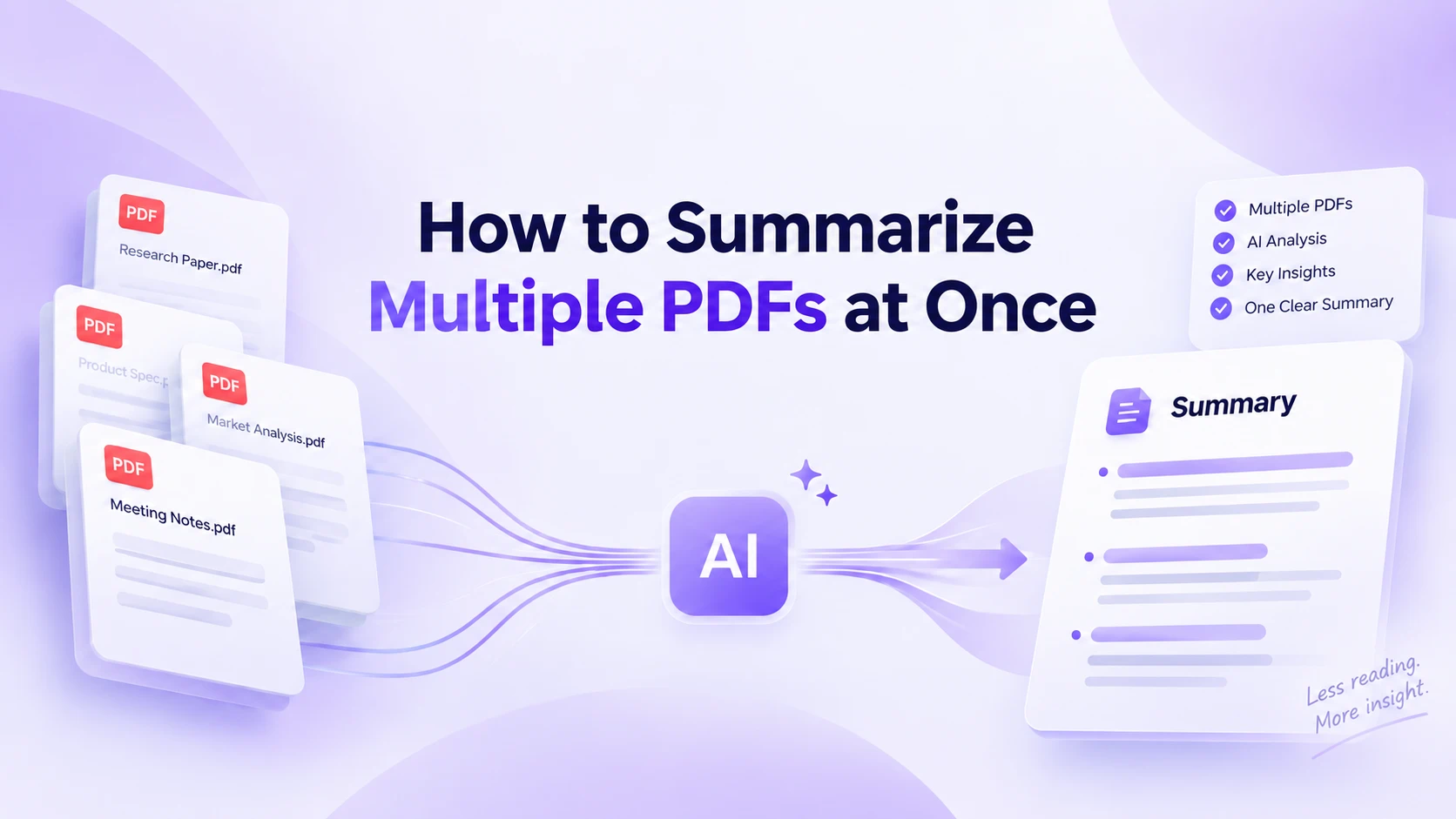
Reading one PDF is manageable. Reading ten PDFs before a meeting, research review, or project deadline is a different problem.
Instead of opening every file, taking notes separately, and trying to remember which document said what, you can use AI to summarize multiple PDFs together. The key is to decide what you want from the files before you start: separate summaries, one combined overview, or a comparison across all documents.
This guide shows you how to summarize multiple PDFs at once with iWeaver and how to get results that are actually useful afterward.
Can AI summarize multiple PDFs at once?
Yes. An AI PDF summarizer can process multiple PDF files and help you extract the main ideas from the collection.
Depending on what you ask for, you might create:
- a separate summary for every PDF;
- one combined summary covering all files;
- a table comparing the documents;
- recurring themes across the PDFs;
- differences or conflicting conclusions;
- important facts, numbers, dates, or action items.
This is different from simply merging PDF files. Merging puts several documents into one file. Multi-PDF summarization works with the information inside those documents and turns it into a shorter, more useful output.
How to summarize multiple PDFs with iWeaver
With iWeaver's AI PDF Summarizer, you can upload your PDFs and work with their content in one place rather than summarizing every file manually.
Step 1: Upload your PDF files
Open iWeaver and upload the PDFs you want to work with.
These could be research papers, business reports, course readings, market reports, meeting documents, manuals, or other files related to the same project.
Before uploading, it helps to remove duplicate or irrelevant files. A cleaner document set usually makes the final summary easier to use.
Step 2: Tell iWeaver what kind of summary you need
Don't stop at a generic request such as: "Summarize these PDFs."
Be more specific about the output.
For example: "Summarize each PDF separately. For every file, give me its main topic, five key points, important data, and conclusion."
Or: "Create one combined summary of these PDFs. Organize the findings by topic rather than by file."
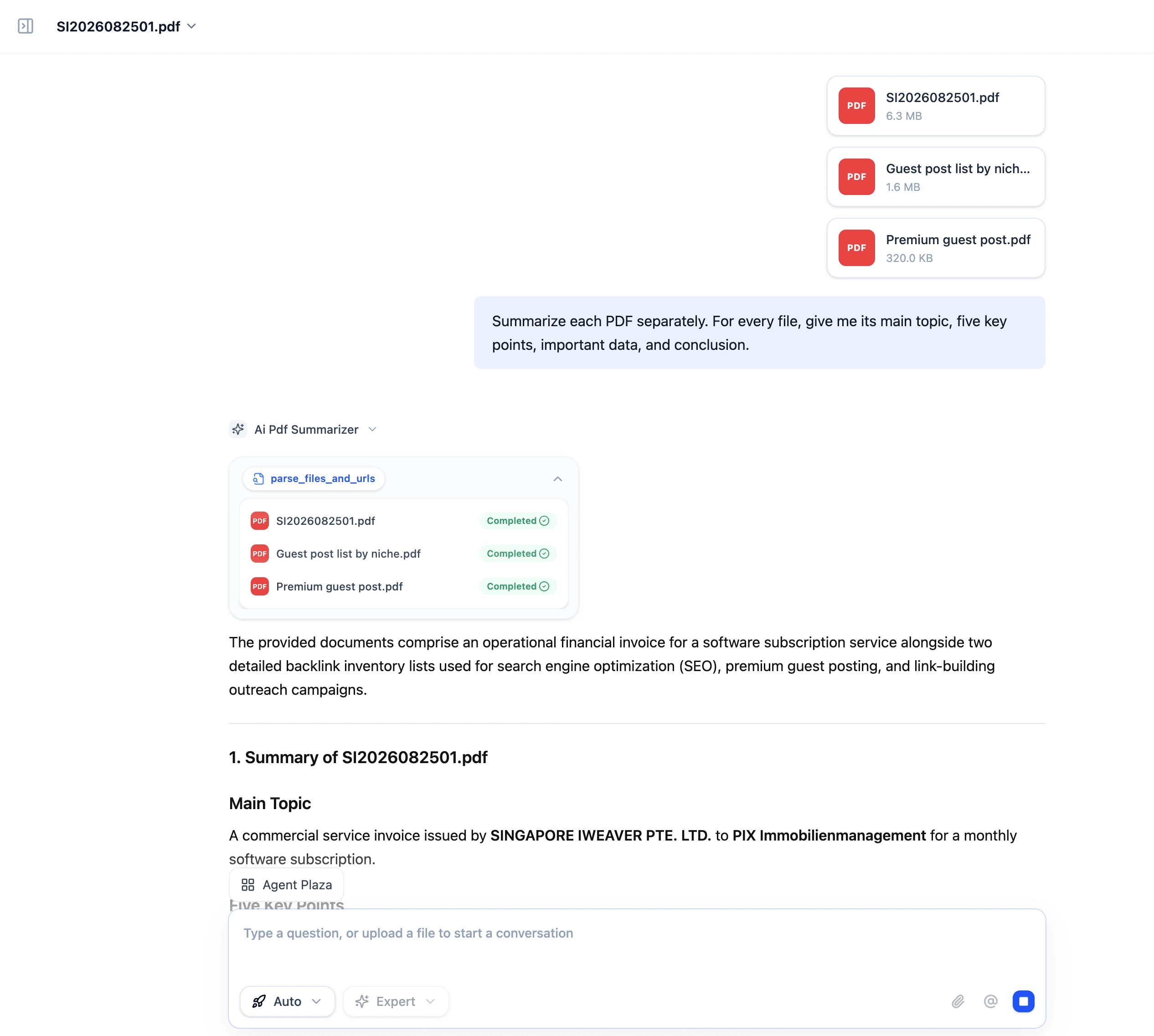
Step 3: Review the summary
Once the PDFs have been processed, read the generated summary before using it in your work.
Check whether the major documents are represented and whether important numbers, conclusions, or qualifications match the original files.
For high-stakes research or business decisions, treat the summary as a faster way to navigate the source material—not as a replacement for verifying the source.
Step 4: Ask follow-up questions across the PDFs
The first summary is often only the starting point.
Once your files are available, you can ask more focused questions such as:
- What conclusions appear in most of these PDFs?
- Which documents disagree with each other?
- What risks are mentioned repeatedly?
- Compare the recommendations in these reports.
- Which PDF contains information about a specific topic?
- Create a table of the key findings from every document.
This is where summarizing several PDFs together becomes much more useful than generating isolated summaries one file at a time.
Three ways to summarize multiple PDFs
There isn't one ideal summary format for every situation. Choose the approach based on what you plan to do next.
| Method | Best for | Output |
|---|---|---|
| Individual summaries | Understanding each file | One summary per PDF |
| Combined summary | Getting the big picture | One synthesis across all PDFs |
| Comparative summary | Finding similarities and differences | Table or topic-by-topic comparison |
1. Summarize each PDF separately
Use this method when each document matters on its own.
For example, if you have six research papers, you may want the research question, methodology, findings, and limitations from each paper before comparing them.
A useful prompt is:
Summarize each PDF separately. Keep the filenames visible and include the main purpose, key findings, supporting evidence, and conclusion for each document.
Keeping the files separate at this stage also makes it easier to trace information back to its source.
2. Combine multiple PDFs into one summary
A combined summary works well when the documents cover the same project or topic and you need an overview rather than six separate mini-summaries.
For example, you might combine several quarterly reports and ask:
Create one executive summary from these PDFs. Focus on major changes, recurring themes, important numbers, risks, and recommended next steps. Avoid repeating the same point when it appears in multiple files.
This turns a collection of documents into something closer to a briefing.
3. Compare multiple PDFs
Sometimes summarizing is not enough. You need to know how the documents relate to one another.
Ask for a structured comparison:
Compare these PDFs in a table. Include the main argument, important findings, evidence, recommendations, and areas where the documents agree or disagree.
This works especially well for research papers, vendor proposals, policies, product reports, and competing market analyses.
Useful prompts for summarizing multiple PDFs
The quality of a multi-PDF summary depends heavily on the question you ask.
Here are several prompts you can adapt:
| Goal | Prompt |
|---|---|
| Quick overview | Summarize these PDFs and give me the 10 most important takeaways across the entire collection. |
| Separate summaries | Summarize every PDF separately and label each summary with its filename. |
| Combined summary | Combine the key information from all PDFs into one structured summary without repeating overlapping points. |
| Research review | Identify the research question, methods, findings, and limitations of each paper, then summarize the overall patterns. |
| Compare documents | Compare the main arguments and conclusions across these PDFs and show the differences in a table. |
| Find contradictions | Identify claims or conclusions that conflict across the documents and indicate which PDF each comes from. |
| Extract actions | Find all recommendations, decisions, deadlines, and action items mentioned across these PDFs. |
| Executive brief | Turn these documents into a one-page executive brief with key findings, risks, and next steps. |
You can also specify the audience. A summary for an executive meeting should look very different from notes for an academic literature review.
How to keep information from different PDFs organized
One challenge with multi-document summarization is source mixing.
If several PDFs discuss the same subject, similar statements can easily blur together. Current multi-document summarization guidance commonly recommends keeping source information attached to important findings so claims can be checked against the original documents.
A simple solution is to request source labels directly:
For every major finding, include the filename it came from. If multiple PDFs support the same finding, list all relevant files.
You can also ask for a source matrix:
| Topic | PDF A | PDF B | PDF C |
|---|---|---|---|
| Main conclusion | … | … | … |
| Supporting evidence | … | … | … |
| Risks | … | … | … |
| Recommendations | … | … | … |
This format is particularly useful when you're working with research, policies, contracts, or reports where the origin of a statement matters.
What if the PDFs are very long?
Long documents need a slightly different approach.
Instead of immediately asking for one tiny summary of hundreds of pages, start with a structured overview. Identify the major sections, topics, or findings first, then narrow the analysis.
For example:
Review these PDFs and first identify the major topics covered across the collection. Then summarize each topic with the relevant findings from each document.
You can then ask follow-up questions about the sections that matter most.
If your main problem is specifically working with very large files, a long PDF summarizer can be more useful than repeatedly copying sections into separate tools.
Scanned PDFs need readable text
Not every PDF contains selectable text.
Some reports, books, receipts, and archived documents are essentially collections of scanned images. These files need OCR so the text can be recognized before it can be summarized reliably.
If one PDF produces an unusually empty or vague summary, check whether its pages are scanned images and whether the text was successfully recognized.
Tables, charts, handwritten annotations, unusual layouts, and low-quality scans may also deserve manual review.
When should you summarize PDFs together?
Multi-PDF summarization is especially useful when your task naturally involves a collection rather than a single document.
Research and literature reviews: summarize papers individually, then identify recurring findings, methodological differences, and research gaps.
Business reports: combine weekly, monthly, or quarterly reports into a shorter management overview.
Competitive research: compare reports, product documents, or market material without maintaining separate notes for every file.
Study materials: turn readings, lecture PDFs, and reference materials into one set of revision notes.
Project documentation: review specifications, reports, meeting documents, and supporting materials around the same project.
Policies and guidelines: compare multiple versions or related documents and surface differences that deserve closer review.
Common mistakes when summarizing multiple PDFs
Uploading several files is easy. Getting a dependable summary takes a little more care.
Asking for "a summary" without defining the output. Specify whether you want separate summaries, a synthesis, comparison, table, or executive brief.
Combining unrelated PDFs. Documents with a shared purpose or topic are easier to synthesize meaningfully.
Losing the source of important claims. Keep filenames or source references when accuracy matters.
Making the summary too short. Compressing hundreds of pages into five bullets can remove the context you actually need.
Ignoring disagreements. If two documents reach different conclusions, the final summary should preserve that difference rather than forcing them into one answer.
Skipping verification. Check important figures, dates, quotations, conclusions, and other details against the original PDFs before relying on them.
From a folder of PDFs to one useful overview
The fastest way to work through multiple PDFs isn't necessarily to create the shortest possible summary.
A better workflow is to upload the relevant files, decide whether you need individual summaries or a combined view, keep important findings connected to their sources, and then use follow-up questions to explore the information that matters.
With iWeaver, you can keep multiple documents in the same workflow and move from PDFs to summaries, comparisons, questions, and structured notes without reading every file from beginning to end.
If the next step is deeper cross-file research rather than summarization alone, you can also compare PDFs to examine similarities and differences between documents.