

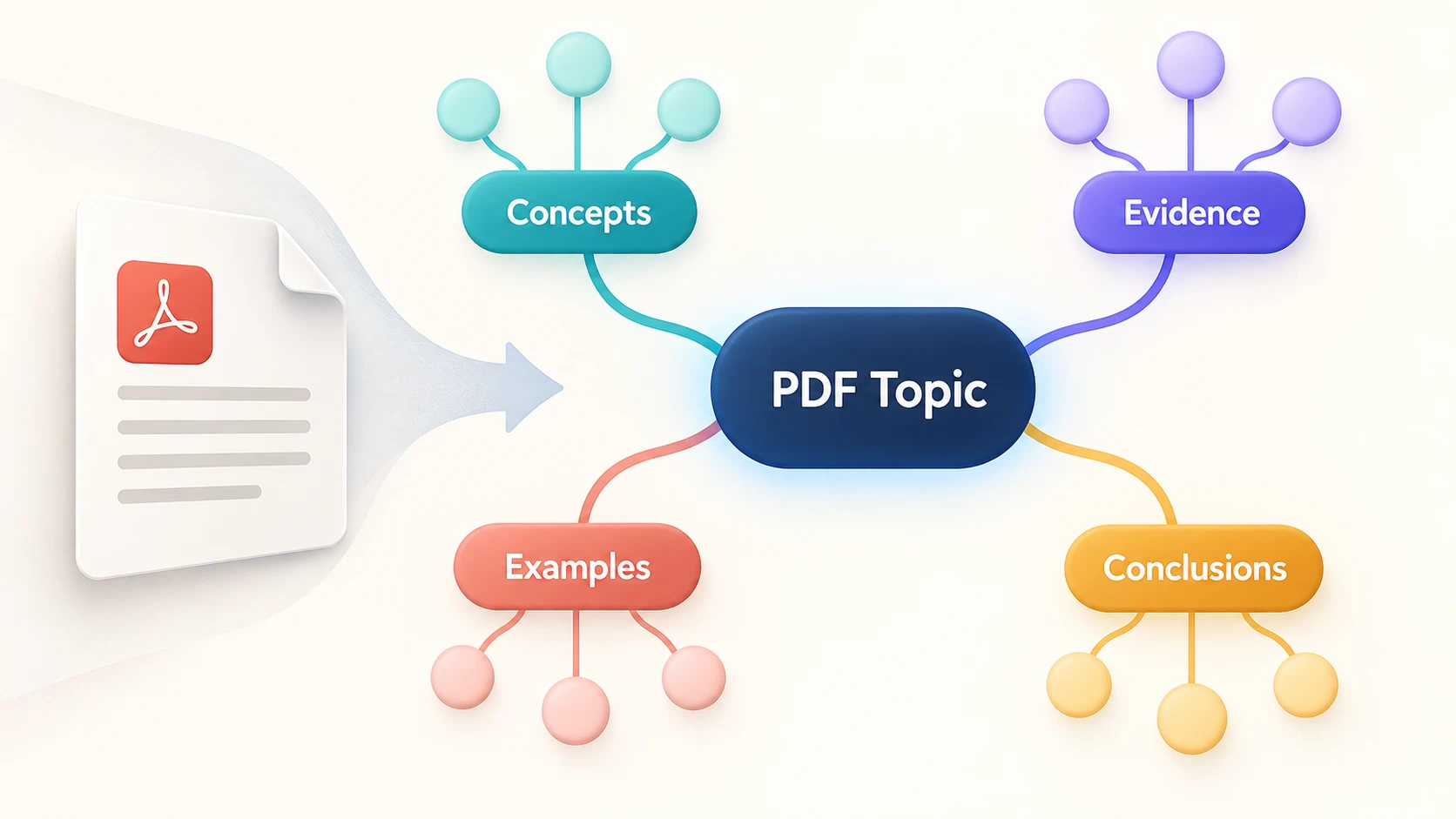
To turn a PDF into a mind map, upload the document to an AI mind mapping tool, identify its central topic, and organize the main ideas into branches. Then check the relationships and supporting details against the PDF. A useful map should show how the information fits together, with short labels you can understand at a glance.
In iWeaver, you can generate an initial map from your document and refine its structure through follow-up instructions. Here is a practical workflow for turning a textbook chapter, report, or research paper into a visual overview you can use.
Decide what the mind map needs to explain
A PDF preserves a document's pages. A mind map reorganizes its ideas around a central topic. That means the best branch structure may differ from the original table of contents.
Before uploading, finish this sentence: “I want this map to help me understand…”
Your answer determines the structure:
| Your goal | Useful main branches |
|---|---|
| Review a textbook chapter | Concepts, definitions, examples, applications |
| Understand a research paper | Question, method, findings, limitations |
| Prepare a report briefing | Situation, evidence, risks, recommendations |
| Learn a procedure | Stages, requirements, decisions, exceptions |
Choose one goal for the first version. Trying to create a study aid, executive briefing, and detailed reference map at once usually produces crowded branches.
How to convert a PDF into a mind map with iWeaver
1. Upload a readable PDF
Open iWeaver's PDF to Mind Map tool and upload your document. The tool is designed to extract key ideas and organize them into a structured map.
Start with one PDF so you can judge whether the structure reflects its content. Keep the original open for checking.
Try selecting and copying a short paragraph from the PDF. If the result is empty or scrambled, text extraction may need attention. For a scanned document, use a clearer copy or OCR before relying on the generated branches. Check that headings and paragraphs remain in the right reading order.
2. Specify the central topic and branch logic
Give the map a clear purpose instead of asking only for “a mind map.” For example:
Create a mind map from this PDF for a student reviewing the topic. Use one central topic and group the content into main concepts, supporting details, and examples. Keep labels concise. Include only information supported by the document.
The branch categories are a starting point. If the document explains a historical event, causes, participants, events, and consequences may work better. Ask for the structure that fits the source.
3. Review the main branches before adding detail
Look at the first level of the map. Can you explain why each branch belongs under the central topic? Are two branches saying almost the same thing?
Try this follow-up:
Review the main branches. Merge overlapping topics, keep distinct ideas separate, and move examples beneath the concepts they explain. Do not remove important qualifications.
4. Add the details that make the map useful
A label such as “Results” tells you where information belongs, but not what the results were. Add short, meaningful sub-branches while keeping long explanations outside the overview.
Ask:
Expand the findings branch with the main reported results. Preserve essential numbers and units. Include source sections or page references where available, and mark anything that needs manual checking.
Treat requested references as navigation aids to verify, not proof that every node is correct.
Example: turn a report into clear branches
Imagine a short report about improving a customer onboarding process. This illustrative structure shows how information could be organized; it is not an output from a tested document.
| Main branch | Supporting nodes | What to verify |
|---|---|---|
| Current process | Signup, setup, first task | Actual stages in the report |
| Reported problems | Unclear instructions, repeated questions | Evidence for each problem |
| Proposed changes | Rewrite guidance, simplify setup | Proposal versus approved decision |
| Evaluation | Completion measure, feedback method | Definitions and measurement period |
Keep “proposed changes” separate from “reported problems.” Otherwise, a visual connection can make an untested suggestion look like an established finding.
If the PDF needs a fuller written explanation alongside the map, use PDF to Note for that companion material. The map provides navigation; the notes preserve detail.
Fix the most common problems
The map is too crowded
Reduce the overview to the main ideas and create a separate map for one dense branch. Keep detailed quotations and long examples in your notes. Shorten labels only when their meaning remains clear.
Important content is missing
Check whether the missing information appears in a table, diagram, appendix, or poorly scanned page. Provide the relevant passage and ask for that branch to be revised. Repeating the same broad prompt may leave the same gap.
The branches are just chapter headings
Ask for the concepts within each chapter, with the headings retained only where they help navigation. A useful map explains the material rather than reproducing its contents page.
The source mixes evidence and opinion
Label those categories separately. Keep recommendations, author interpretations, and reported observations distinct, especially when the map will support a presentation or decision.
Can you create a mind map without uploading the PDF?
Yes. You can extract the relevant text yourself, organize a short outline, and use Text to Mind Map to visualize it. This is useful when you only need one section or have already corrected the extracted text.
Preserve the document title and section reference with that outline so you can return to the source later.
Before saving the final version, check that the main topic is clear, branches do not duplicate one another, and important claims match the PDF. Start with one readable document and one purpose: a map you can explain is more useful than a diagram filled with everything the document contains.