
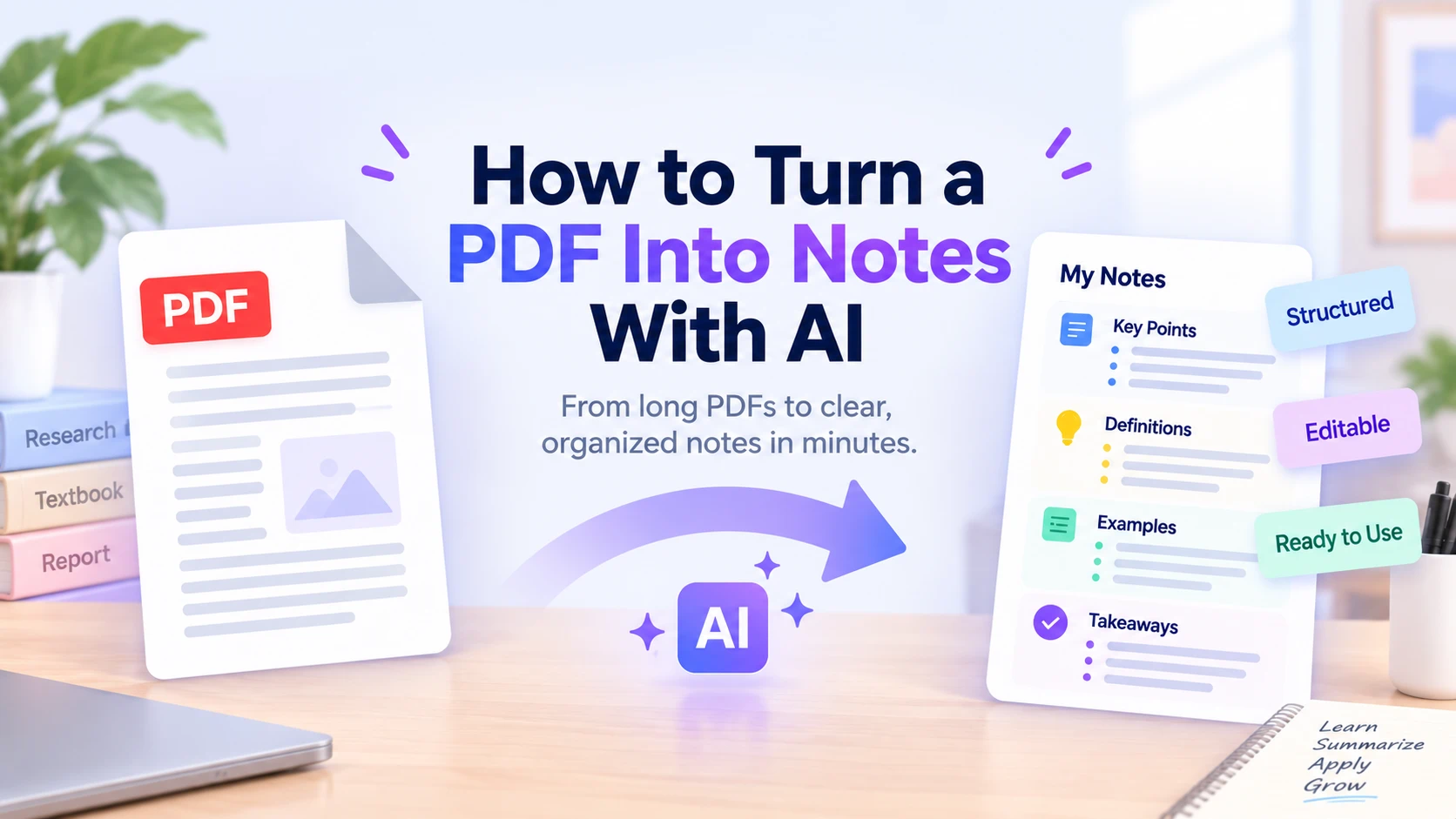
A long PDF isn't always difficult to read, but it can be difficult to turn into something useful afterward.
You may finish a textbook chapter, research paper, report, or lecture PDF only to realize that your highlights are scattered across dozens of pages. Turning those pages into organized notes can take almost as long as reading them.
AI can shorten that process by converting a PDF into structured notes with headings, key points, definitions, and important details. The goal isn't simply to make the document shorter. It's to create notes you can actually review and reuse.
Here's how to do it.
Can AI turn a PDF into notes?
Yes. AI can read the content of a PDF, identify important information, and reorganize it into a note-friendly format.
Depending on the document and your instructions, those notes might include:
- main ideas;
- key concepts and definitions;
- important facts or data;
- arguments and supporting evidence;
- examples;
- formulas or terminology;
- conclusions and takeaways.
Current PDF-to-notes tools commonly organize output around headings, bullet points, key concepts, and definitions rather than producing only a short paragraph summary.
That distinction matters.
A summary is designed to tell you what a document is about as quickly as possible. Notes are designed to help you return to the information later.
How to turn a PDF into notes with iWeaver
You don't need to manually copy paragraphs from the PDF into a notes app. Start with the original document and tell iWeaver how you want the information organized.
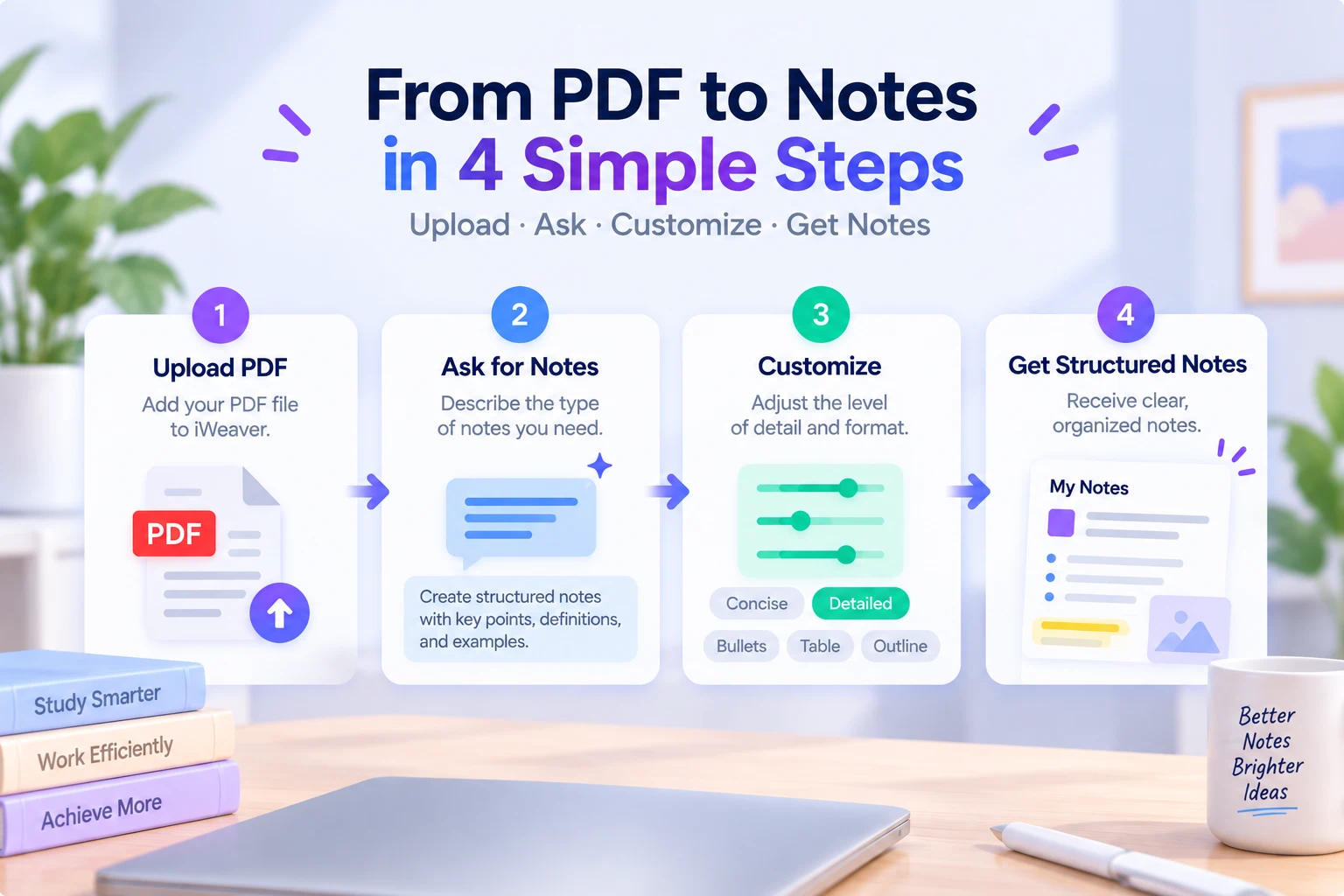
Open iWeaver and upload the PDF you want to work with.
This could be a:
- textbook chapter;
- research paper;
- lecture handout;
- business report;
- training manual;
- industry report;
- course reading.
If you mainly need a quick overview before taking notes, you can first use the AI PDF Summarizer to understand the document's main points.
Step 2: Ask for structured notes
Instead of simply asking:
Summarize this PDF.
Tell iWeaver that you want notes and describe their structure.
For example:
Turn this PDF into structured notes. Organize the content by topic, use clear headings and bullet points, and include important definitions, facts, examples, and key takeaways.
For study material, you might use:
Create study notes from this PDF. Include the main concepts, definitions, important examples, and points I should remember for review.
This helps prevent the output from becoming a generic summary.
Step 3: Adjust the level of detail
Not every PDF needs the same kind of notes.
For a 15-page article, concise notes may be enough. For a textbook chapter or technical report, you may want more detail.
Try instructions such as:
Keep the notes concise enough for a 10-minute review.
Or:
Create detailed notes section by section and preserve important examples and supporting evidence.
The right level of detail depends on what you plan to do with the notes afterward.
Step 4: Review the notes against the PDF
AI-generated notes are a starting point, not a reason to ignore the original source.
Check important numbers, formulas, quotations, dates, definitions, and conclusions against the PDF.
This is especially useful with research papers, technical material, and documents containing complex tables or charts.
What should good PDF notes include?
Useful notes preserve enough context to make sense later without reproducing the entire document.
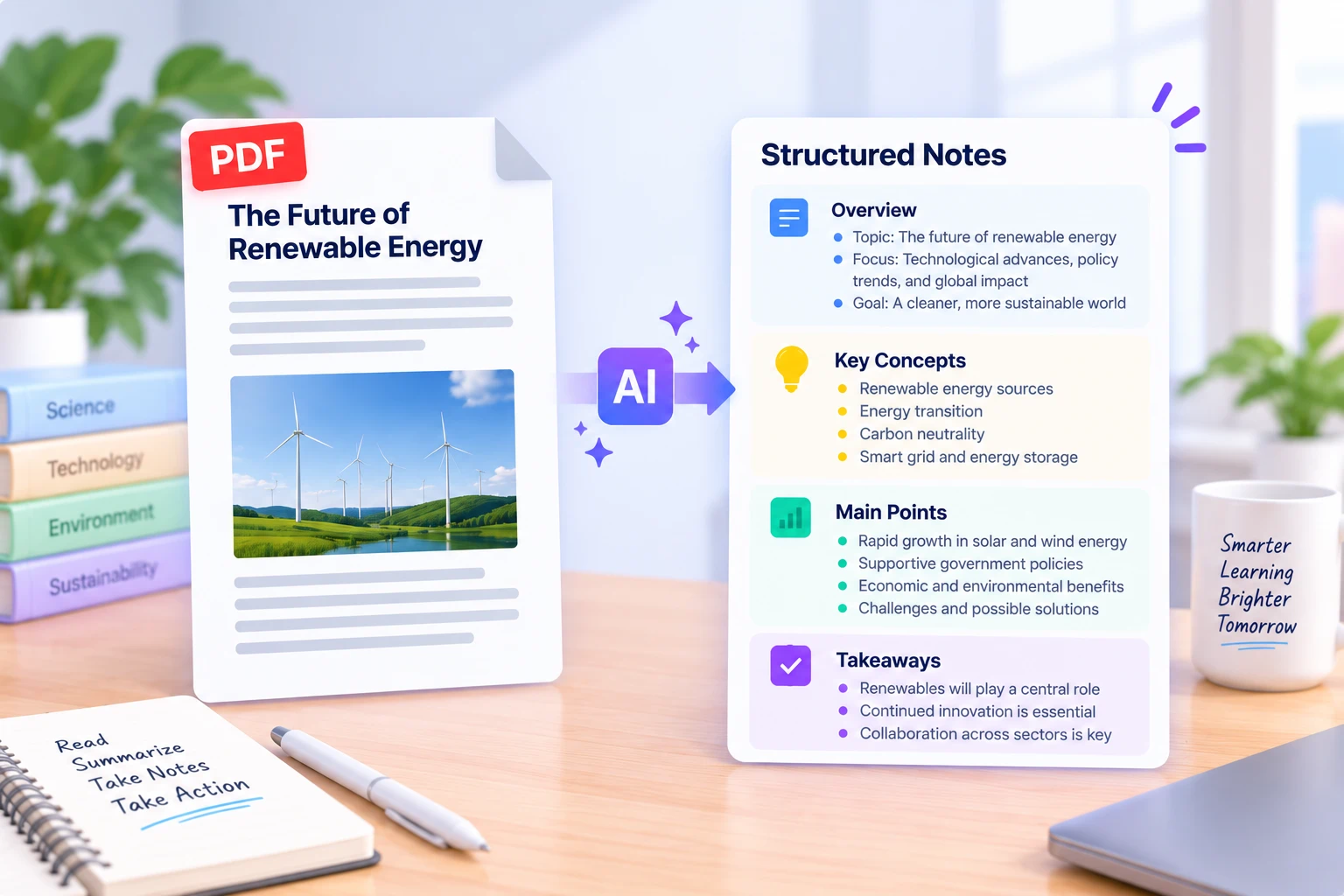
A simple structure is:
| Note section | What to include |
|---|---|
| Overview | What the document is mainly about |
| Key concepts | Important ideas and terminology |
| Main points | Core arguments or findings |
| Evidence | Important examples, facts, or data |
| Definitions | Terms you may need to review |
| Takeaways | What is worth remembering |
You don't need every section for every document.
PDF notes vs. PDF summaries
Although the two are closely related, they serve different purposes.
| PDF summary | PDF notes |
|---|---|
| Gives a quick overview | Supports later review |
| Usually shorter | Can preserve more detail |
| Focuses on main ideas | Includes concepts, details, and examples |
| Often read once | Designed to be reused |
| Good for understanding quickly | Good for studying or reference |
Current PDF-to-notes pages increasingly make this distinction explicitly, describing notes as more detailed and structured than a generic summary.
If you only need to understand what a long document says, summarization may be enough. If you need to study, reference, or reuse the information, notes are usually more practical.
Useful prompts for turning PDFs into notes
You can change the prompt depending on your goal.
| Goal | Prompt |
|---|---|
| General notes | Turn this PDF into organized notes with headings and bullet points. |
| Study notes | Create study notes with key concepts, definitions, examples, and important facts. |
| Research notes | Extract the research question, methods, findings, evidence, and limitations. |
| Meeting prep | Turn this report into briefing notes with key findings, risks, and questions to discuss. |
| Detailed notes | Create section-by-section notes while preserving important supporting details. |
| Quick review | Create concise notes I can review in 10 minutes. |
You can also ask follow-up questions after the first version.
For example:
Expand the section about the methodology.
Or:
Explain this concept in simpler language and add it to my notes.
This is often easier than trying to create perfect notes with one long prompt.
What about long or scanned PDFs?
Long PDFs may be easier to process section by section, especially when you need detailed notes rather than a short overview.
For a more direct workflow, you can use PDF to Note to turn PDF content into organized notes that are easier to review, edit, and reuse.
Scanned PDFs can be more challenging because the pages may contain images rather than selectable text. OCR may be needed before the content can be processed reliably.
Always check diagrams, tables, equations, and other layout-dependent information against the original PDF.
Turn reading material into notes you can reuse
The value of converting a PDF into notes isn't simply saving a few minutes of typing.
Good notes make the document easier to return to.
Instead of reopening a 70-page PDF to find one concept, you can work from a structured set of headings, key points, definitions, and supporting details.
Start by uploading the PDF, tell iWeaver what kind of notes you need, adjust the level of detail, and verify important information against the source.
The result is a set of notes that can support studying, research, meeting preparation, or future reference without forcing you to rebuild the document from scratch.