
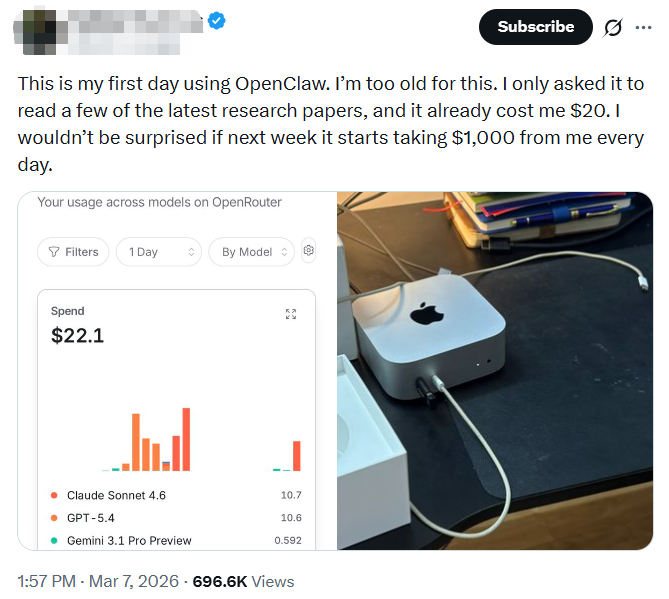
While OpenClaw (formerly known as Moltbot/Clawdbot) has achieved widespread adoption, its associated security risks and operational costs have sparked extensive discussion. On social platform X, numerous users have expressed concerns regarding excessive permission requests and inflated API billing.
Although OpenClaw offers utility in processing repetitive workflows, I recommend that users who are in the trial phase or maintain high standards for personal data security follow the steps below to perform a thorough uninstallation and deep system cleanup to mitigate potential risks.
Core Reasons for Uninstalling OpenClaw
System Permissions and Security Vulnerabilities
OpenClaw requires access to system keyboard monitoring, mouse control, and file read/write permissions. According to reports from security research institutions, the tool’s local gateway contains flaws in validating WebSocket sources. Attackers could potentially hijack the local gateway via malicious webpages to obtain user authentication tokens and execute arbitrary commands.
Uncontrolled API Costs
The tool generates substantial context input when executing complex tasks. Due to the lack of an effective context length management mechanism, Token consumption for a single session can reach hundreds of thousands within a short period, resulting in significant financial charges.
Uninstallation Process for Windows
In a Windows environment, please follow the sequence below to ensure background processes are terminated and associated files are completely removed.
Step 1: Terminate Background Gateway Service
Open PowerShell as an Administrator and execute the following command to stop the running service:
openclaw gateway stopStep 2: Execute Official Uninstallation Command
Use the built-in tool to clean the main program and associated components:
openclaw uninstall --all --yes --non-interactiveStep 3: Remove Command Line Package Manager Tools
Depending on your initial installation method, choose the corresponding command to remove global packages:
- For npm users:
npm rm -g openclaw - For pnpm users:
pnpm remove -g openclaw
Step 4: Manually Clear Residual Configuration Files
Official uninstallation commands often do not cover all user directories. Please manually delete the folders at the following path:
C:\Users\[YourUsername]\.openclaw(If you installed an earlier version, check and delete C:\Users\[YourUsername]\.clawdbot as well.)Uninstallation Process for macOS
macOS involves LaunchAgents process management; therefore, system services must be manually deregistered.
Step 1: Stop Gateway Operation
In the Terminal, enter:
openclaw gateway stopStep 2: Clean Startup Items and Data Directories
Execute the following commands to deregister the auto-start configuration and delete core data:
rm -f ~/Library/LaunchAgents/ai.openclaw.gateway.plistrm -rf ~/.openclawPost-Uninstallation Security Audit
Since OpenClaw has had direct contact with API keys and system environments, the following security hardening measures should be implemented after uninstallation:
| Audit Item | Action | Purpose |
| API Key Rotation | Log in to OpenAI/Anthropic and reset all keys | Invalidate potentially leaked credentials |
| Session Revocation | Force logout of all active sessions on third-party platforms | Terminate potential remote access paths |
| Env Variable Cleanup | Check and delete OPENCLAW_API_KEY from system variables | Prevent sensitive info from remaining in config |
Verifying Uninstallation Status
After completing the steps above, restart your terminal and type:
openclawIf the system returns “command not found” or “is not recognized as an internal or external command,” the software has been successfully removed from the system path.
Data security is a fundamental prerequisite for system automation. For automated office requirements, I suggest prioritizing official open-source APIs, such as ChatGPT-5.4’s native computer use feature. Additionally, for users seeking efficiency with strict permission controls, tools like iWeaver serve as a viable alternative.