

To use Kimi K3.1 Pro, choose an access route, start a new conversation with the model, and give it a specific task with the material it needs. You can access the model through Kimi’s products and API. Kimi K3.1 Pro is also available in iWeaver, which provides a free trial of the model.
The most useful first task has a result you can check: compare two documents, explain a difficult passage, or fix a reproducible coding problem. This guide walks through those tasks and shows how to refine the result without starting over each time.
Choose where to use Kimi K3.1 Pro
For release details before you begin, read what is new in Kimi K3.1 Pro.
Kimi’s release announcement lists access through its website, apps, Kimi Work, Kimi Code, and API. Choose the route that fits the task you want to complete.
| Your task | A practical starting point |
|---|---|
| Ask questions or explore an idea | A chat interface with K3.1 Pro selected |
| Understand and organize source documents | iWeaver’s document workflow |
| Change files in a software project | Kimi Code |
| Connect the model to your own application | Kimi API |
These routes have separate account requirements, usage allowances, and controls. Access to a model through one service does not establish the terms of another.
For a first attempt, avoid configuring an API unless your goal is an integration. Start with a task you can complete and review in a chat or document workflow.
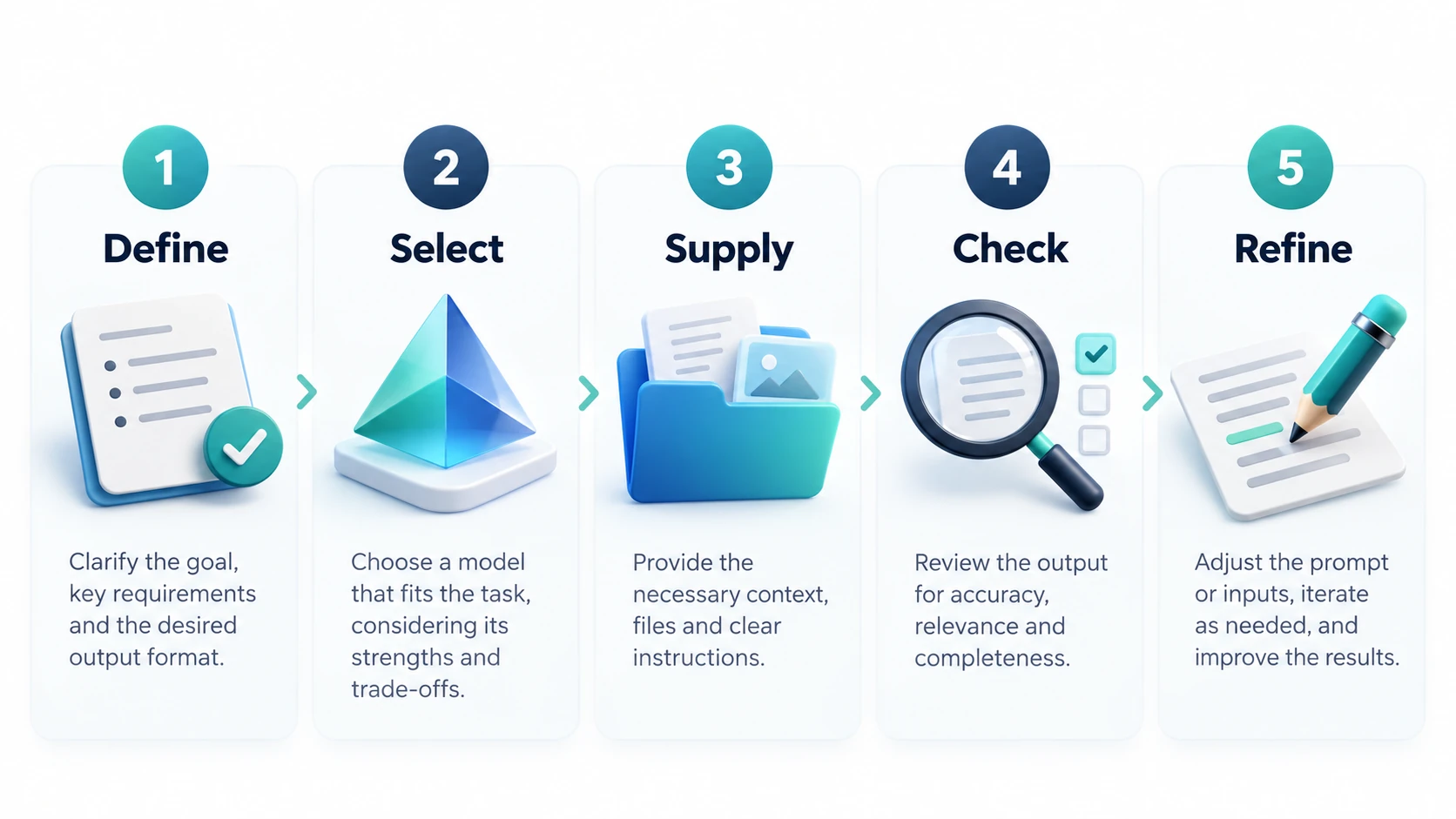
Step 1: Define the result before adding material
Write down what you want to receive. “Analyze these files” leaves too much open. “Compare the proposed launch plan with the interview notes and identify unsupported assumptions” gives the model a clearer job.
A useful task description includes four elements:
- The question you need answered.
- The sources the answer should use.
- The form of the final output.
- The details that require special care.
For example:
Compare the launch plan with the customer interview notes. Produce a table of proposed features, supporting interview evidence, and unresolved questions. Use only the attached material. Separate your suggestions from facts stated in the documents.
Keep the first assignment narrow. You can expand it after checking that the model understands the sources.
Step 2: Start a fresh session and select the model
If you are choosing between the two variants, see K3.1 Pro vs. Highspeed.
Choose Kimi K3.1 Pro in the model controls available in your service. In Kimi Code CLI, the official model selector is /model. Its documentation recommends a fresh session when switching to the new model.
If the model is missing, check your account entitlement and the current model list. In an official Kimi client, restarting or signing in again may refresh availability, as described in the documentation. A third-party service may have its own rollout process.
Avoid continuing a long conversation that contains assumptions from a different task. A fresh session makes it easier to supply the right context and judge the response.
Step 3: Supply the sources in a usable order
Name your files clearly and explain their relationship. A current policy and an older policy should be labeled as such. Interview notes should retain speaker names or identifiers where attribution matters.
Ask the model to check the source set before writing a long answer:
List the documents you can use, their apparent dates, and the question each one helps answer. Flag any file you cannot read or any missing information that prevents the comparison.
This checkpoint can reveal an unreadable attachment or a version mismatch early. It also gives you a chance to correct the scope before the model builds an argument around it.
Kimi advertises a large context window, but your available allowance depends on the access route and plan. Do not assume a single upload can contain every file in a project. Check the service’s actual limits.
Step 4: Ask for evidence before a polished report
For document work, begin with an evidence table. In iWeaver, you can use the AI Document Summarizer to orient yourself to the material before asking K3.1 Pro for a focused comparison.
Try this prompt:
Extract the evidence needed to answer the research question. For each point, show the source name, a passage or location I can check, and any qualification that changes its meaning. List conflicts separately. Do not write the final report yet.
Inspect the table. Does each passage support the claim? Has a statement about one customer become a statement about all customers? Has a forecast been treated as an observed result?
Once the evidence is sound, ask for the deliverable:
Turn the reviewed evidence into a 600-word briefing. Lead with the decision it supports, explain the strongest evidence, and end with unresolved questions. Preserve the uncertainty in the source material.
The two-stage process gives you an opportunity to correct reasoning before it becomes polished prose.
Step 5: Use targeted follow-ups
When an answer misses the mark, identify the problem precisely. “Try again” gives little direction.
If the response is too broad, ask it to address one decision. If it mixes evidence and opinion, request separate sections. If it gives an unsupported conclusion, ask which source establishes that conclusion and what weaker wording would be justified.
For example:
Revise the recommendation in paragraph three. The interview notes establish interest, but they do not establish willingness to pay. Keep that distinction explicit and explain what evidence would resolve it.
For a visual overview of a PDF, the PDF to Mind Map workflow can help organize the topic. Check the source again before relying on a branch label as a detailed claim.
Using K3.1 Pro for coding
If you are evaluating another model for the same work, use the task criteria in Kimi K3.1 Pro vs. Claude Opus 5.5.
Give a coding task a reproducible starting point and an observable finish. Include the error, expected behavior, and relevant project constraints.
Reproduce the failing date-parser test. Identify the cause, make the smallest justified change, and run the relevant checks. Explain any behavior the fix changes and any cases you could not verify.
Review the changed files and test results. A confident explanation is useful only when the implementation supports it.
For integrations, copy the exact model identifier and endpoint from the documentation for your access channel. Kimi Code and the general API use channel-specific naming. Do not substitute the display name from a chat menu into an API request.
Troubleshooting your first run
| Problem | What to check |
|---|---|
| The answer ignores a document | Ask which sources were available and request a passage-specific answer |
| Two documents are blended together | Label versions and request separate extraction before comparison |
| The response invents missing details | Require an explicit “not stated in the sources” category |
| A coding result looks finished but fails | Reproduce the issue and inspect the relevant tests and changes |
| A Kimi Code request rejects disabled thinking | Keep thinking enabled, as required by its model documentation |
Use one completed task to decide what to do next. If K3.1 Pro produces a sound evidence table but an unfocused report, refine the writing instructions. If it misses source details, improve the source organization and review checkpoints first. Expand the workload after the smaller task delivers a result you can trust.