A 60-page reading assignment is difficult for a simple reason: students rarely need every sentence equally. They need to identify the argument, understand the evidence, find important definitions, and know what deserves a closer read.
That is where an AI PDF summarizer can help. Used well, it turns a long document into a study map. Used poorly, it can hide nuance or encourage students to trust a summary they have not checked.
The best student workflow in 2026 is therefore not “upload PDF and skip the reading.” It is “use AI to locate the important parts, then verify them in the source.”
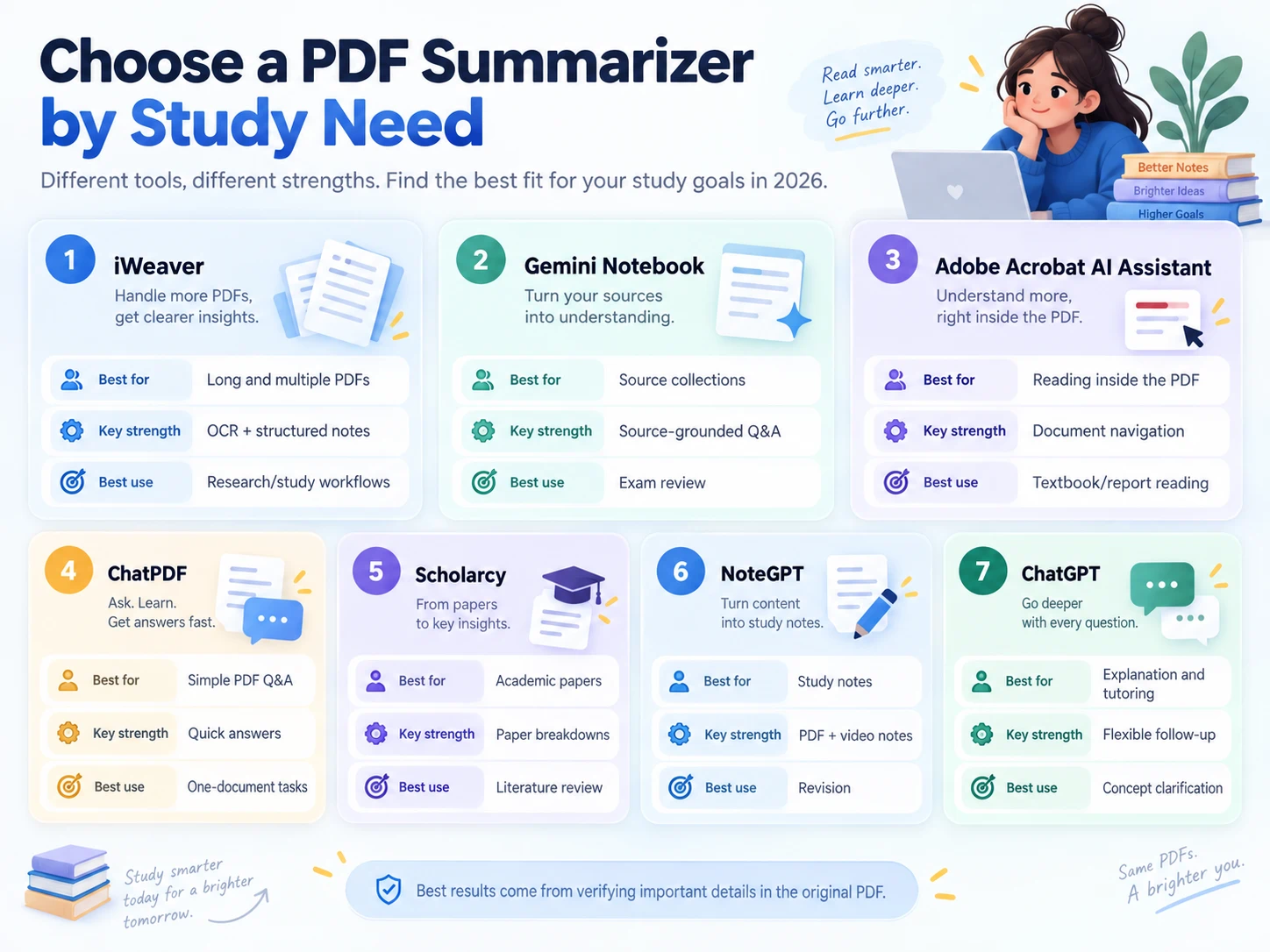
Here are seven useful options for different study needs.
Quick Comparison
| Tool | Best for | Useful student feature | Main limitation |
|---|---|---|---|
| iWeaver | Long and multiple PDFs | OCR, structured summaries, follow-up questions | Most useful when you build a repeatable study workflow |
| Gemini Notebook | Studying from a source collection | Source-grounded Q&A and study outputs | Works best when materials are organized into a notebook |
| Adobe Acrobat AI Assistant | Reading PDFs in place | Summary plus document navigation | PDF-centered rather than a broad study workspace |
| ChatPDF | Simple PDF Q&A | Ask questions directly about one document | Less powerful for broader multi-format work |
| Scholarcy | Research papers | Paper-focused breakdowns and key points | More specialized for academic material |
| NoteGPT | Quick study notes | PDF and video note generation | Output depth can vary by source |
| ChatGPT | Explanation and tutoring | Flexible prompts and follow-up | Students still need to verify page-level evidence |
1. iWeaver — Best for Long, Scanned, and Multiple PDFs
iWeaver's AI PDF Summarizer is designed for more than shortening a document. Students can use it to extract the structure of long PDFs, create notes, ask follow-up questions, and work with multiple files.
OCR support is useful when a PDF is scanned rather than digitally searchable. That matters for old readings, photographed pages, handouts, and archival material.
A practical workflow is:
- Upload the assigned PDF.
- Ask for a section-by-section outline.
- Identify the chapters or pages most relevant to your question.
- Ask follow-up questions about those sections.
- Return to the PDF and verify important claims.
For several readings on the same topic, summarize them separately first, then compare agreements, disagreements, evidence, and limitations.
2. Gemini Notebook — Best for a Course Reading Collection
Gemini Notebook is useful when you have many sources related to one class or research project. Instead of treating every PDF as a separate task, you can organize sources together and ask questions based on the collection.
That makes it helpful for exam review and literature-heavy courses.
For example, you can ask:
Compare how these three readings define social capital. Show where the definitions overlap and where they differ.
The source-grounded approach is particularly useful because students can move from a general answer back toward the material used to produce it.
It also supports study-style outputs beyond a plain summary, which can help when reviewing a topic from several angles.
3. Adobe Acrobat AI Assistant — Best for Reading Inside the PDF
Adobe Acrobat AI Assistant fits students who already spend much of their reading time in Acrobat.
Instead of exporting text into another tool, you can summarize a document and ask questions while staying close to the PDF. That makes it useful for textbooks, reports, assigned readings, and source-heavy research.
The main advantage is context. If a summary says a result is important, you can return to the relevant part of the document rather than relying only on generated notes.
This is especially helpful when a professor expects precise references to the original text.
4. ChatPDF — Best for Simple Question-and-Answer
ChatPDF has a straightforward workflow: upload a PDF and ask questions about it.
That simplicity is useful for students who do not want to learn a larger knowledge-management system. You can use it to clarify a concept, locate a section, or get a quick overview before a deeper read.
For example:
What are the author's three main arguments, and which sections contain the evidence for each one?
The tool is most useful when your task is focused on one or a few documents rather than a large mixed-format research project.
5. Scholarcy — Best for Academic Papers
Research papers have a predictable structure but can still be difficult to scan efficiently. Scholarcy is designed for academic reading and can help students identify the purpose, methods, findings, and other important elements of a paper.
That makes it helpful during literature review.
Instead of reading 30 papers in full immediately, you can first screen them:
- What question does the paper ask?
- What data or sample does it use?
- What method is used?
- What are the main findings?
- What limitations are reported?
- Is it relevant to my research question?
Then read the most relevant papers in full.
This is a better use of summarization than treating generated notes as a substitute for academic evidence.
6. NoteGPT — Best for Turning Course Content Into Notes
NoteGPT is useful for students who move between PDFs, videos, and other study materials.
The appeal is speed: turn a source into study notes, then reorganize those notes for review.
It works well for lecture materials, introductory readings, and revision. For difficult technical subjects, however, students should check formulas, definitions, and examples against the source because small errors can change the meaning significantly.
7. ChatGPT — Best for Explaining Difficult Sections
ChatGPT is useful when the problem is not only “this PDF is long” but “I do not understand this section.”
After uploading a supported document, you can ask for different levels of explanation:
Explain this section as if I already know basic statistics but have never studied Bayesian inference.
Or:
Turn pages 18–25 into a study guide with key concepts, common misunderstandings, and five self-test questions.
The flexible conversational format makes it useful as a tutor-style layer around a document.
For document-specific Q&A, iWeaver also provides a dedicated Chat with PDF workflow.
How Students Should Use a PDF Summarizer
A good workflow has four stages.
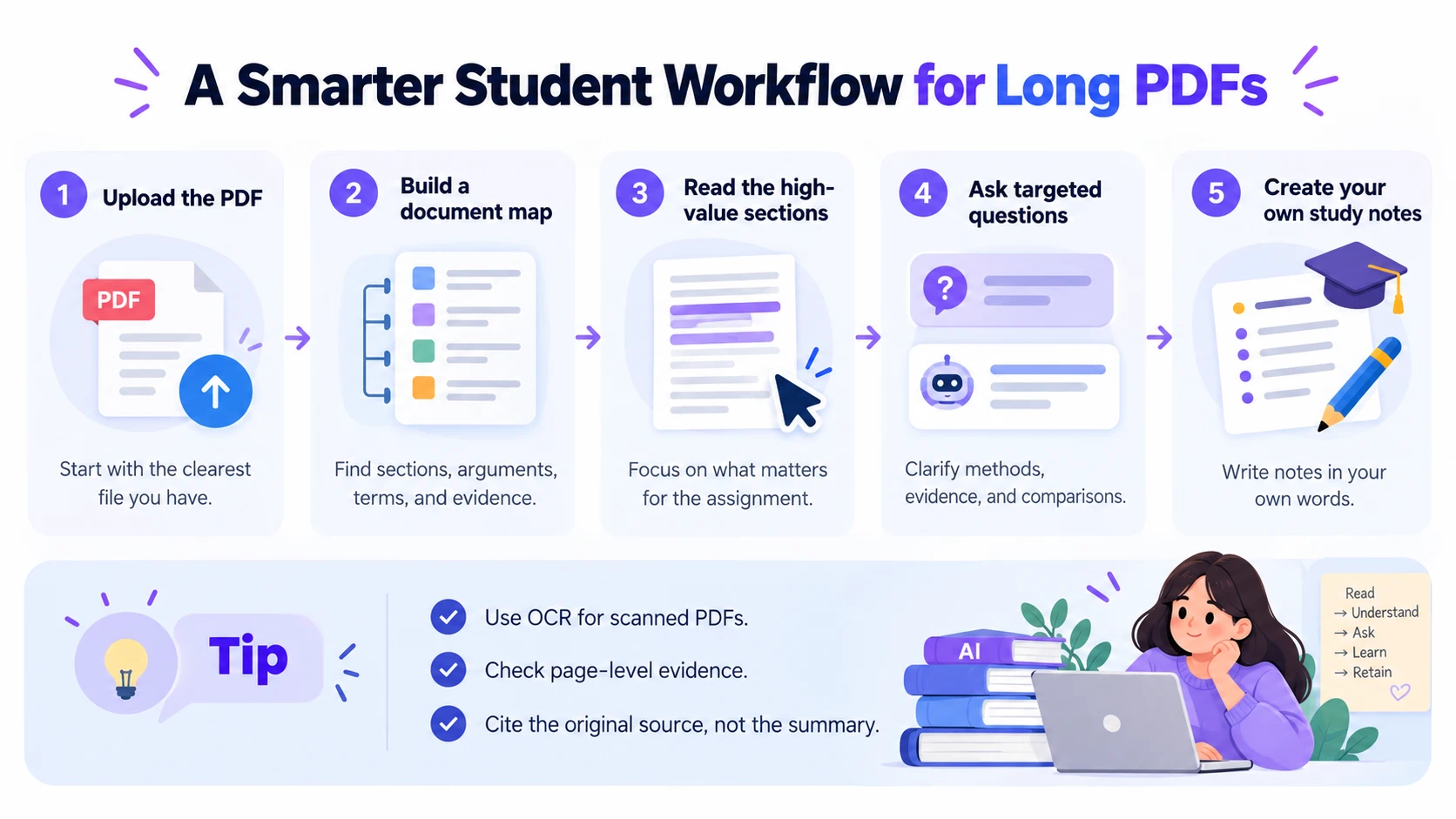
Ask for:
- Main topic
- Section structure
- Key arguments
- Important terms
- Data or evidence
- Conclusions
This tells you where to spend your attention.
Step 2: Read the high-value sections
Do not stop at the summary. Open the introduction, methods, evidence, discussion, or chapters most relevant to your assignment.
This is where you recover nuance the summary may have compressed.
Step 3: Ask targeted questions
The best questions are specific.
Instead of:
Explain this PDF.
Try:
What evidence does the author use to support the second argument? Separate direct evidence from the author's interpretation.
Or:
Compare the method in this paper with the method used in the second PDF. What would make their results difficult to compare?
Step 4: Create your own notes
Turn the AI output into notes written in your own words.
A useful structure is:
- Concept
- Definition
- Why it matters
- Example
- Source page
- Question I still have
That final step makes the summary part of learning rather than a replacement for it.
What About Scanned PDFs?
A scanned PDF may contain pages that behave like images rather than selectable text.
In that case, choose a tool with OCR. OCR converts visible text into machine-readable text before the summarization step.
For old books, photographed pages, or poor-quality scans, check names, numbers, equations, tables, and citations carefully. OCR errors often occur exactly where precision matters most.
Can You Cite an AI Summary?
Usually, you should cite the original source, not the AI-generated summary.
If an AI tool tells you that a paper found a 20% improvement, return to the paper, confirm the number, understand how it was calculated, and cite the paper according to your required citation style.
Also follow your school or instructor's rules on AI assistance. Policies differ by class and institution.
AI PDF summarizers are most useful when they help students decide what to read more carefully.
For multi-PDF and OCR workflows, iWeaver is a strong option. For source collections, Gemini Notebook is useful. Adobe works well for PDF-centered reading, while tools such as Scholarcy and ChatPDF address narrower academic needs.
Whichever tool you choose, keep the original PDF open. The summary should guide your attention—not become your only source.