A 70-page market report, client proposal, technical manual, or contract rarely needs to be read in the same way from beginning to end.
Most professionals first need to know what matters: the main conclusions, important numbers, risks, decisions, and sections worth reading in full.
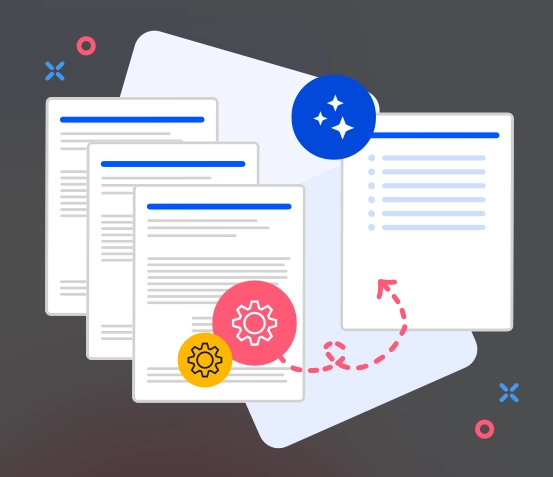
That is where an AI PDF summarizer can help. The useful ones do more than shorten a document. They let you ask follow-up questions, extract specific information, compare documents, and turn a long PDF into something you can actually use in your work.
Here are five options worth considering in 2026, followed by a practical workflow for getting better summaries from long PDFs.
What Should a Professional PDF Summary Actually Include?
A generic paragraph is rarely enough.
The right summary depends on why you opened the document in the first place.
| Document | Useful summary output |
|---|---|
| Market report | Trends, important numbers, competitors, risks, opportunities |
| Contract | Obligations, dates, fees, exclusions, termination terms |
| Research paper | Research question, method, findings, limitations |
| Client proposal | Scope, deliverables, timeline, pricing, open questions |
| Financial report | Revenue changes, costs, guidance, risks, major variances |
| Technical manual | Procedures, requirements, warnings, troubleshooting steps |
Before choosing a tool, think about what you need to do after the summary.
Do you only need a quick overview? Do you need to verify statements against specific pages? Are you reviewing several PDFs together? Those questions matter more than how short the generated summary is.
5 AI PDF Summarizers for Professionals
| Tool | Best for | Useful capability |
|---|---|---|
| iWeaver | Batch document review | Multiple PDFs, OCR, structured outputs, follow-up analysis |
| ChatPDF | Fast PDF Q&A | Page references and document chat |
| Adobe Acrobat AI Assistant | Existing PDF workflows | Summary and source navigation inside Acrobat |
| NotebookLM | Multi-source research | Source-grounded notebooks and cross-document analysis |
| Claude | Custom document analysis | Flexible prompts and detailed long-document review |
1. iWeaver: Best for Multi-PDF Professional Workflows
For professionals who regularly work with reports, papers, manuals, proposals, or other document-heavy projects, iWeaver AI PDF Summarizer is designed for more than a one-off summary.
You can upload multiple PDFs, generate structured summaries, and continue asking questions about the material.
That makes it useful when your task looks more like:
- Review five industry reports before a meeting.
- Extract risks from several project documents.
- Compare findings across research papers.
- Turn scanned PDFs into readable information.
- Pull conclusions, statistics, and next steps into a working note.
iWeaver also supports OCR for scanned documents and can turn information into different structures rather than forcing everything into a paragraph.
For example, instead of asking:
Summarize this PDF.
You could ask:
Extract the five most important findings, all numerical results related to customer retention, the risks mentioned by the authors, and three questions we should discuss in the next meeting.
That usually produces a result that is much easier to use.
2. ChatPDF: Good for Quick Questions With Page References
ChatPDF is particularly convenient when you have one PDF and want to start asking questions immediately.
Upload the file, generate a summary, then continue with questions such as:
- Where does the author explain this conclusion?
- What does page 28 say about pricing?
- What are the main limitations?
- Which sections discuss implementation risks?
One useful part of the experience is the connection between answers and locations in the original PDF. That makes it easier to check important statements instead of treating the AI response as the final source.
It also supports multi-file conversations, so it can work for smaller comparison tasks.
If your workflow is mainly open a PDF → ask questions → verify the answer, ChatPDF keeps the process simple.
3. Adobe Acrobat AI Assistant: Good for Existing Acrobat Users
If most of your documents already live inside Acrobat, Adobe's AI features provide a convenient way to summarize PDFs without moving into a separate document-analysis tool.
Acrobat can generate document overviews and section summaries and lets you navigate from generated information back to the corresponding content.
This is useful for people working with:
- Contracts
- Internal reports
- Policies
- Client documents
- Forms and official PDFs
The main advantage is workflow continuity. You can read the original PDF, inspect the generated summary, and check relevant sections within the same environment.
For occasional PDF review, that can be more convenient than adding another dedicated summarization app.
4. NotebookLM: Good for Research Across Multiple Sources
Sometimes the PDF is only one piece of a larger project.
You may have:
- Three research papers
- A market report
- Internal notes
- Several websites
- Presentation slides
- Interview transcripts
NotebookLM is useful in this situation because it organizes multiple sources into a notebook and lets you ask questions based on those sources.
Instead of producing one isolated PDF summary, you can ask broader questions such as:
What conclusions appear consistently across these reports?
or:
Where do these three sources disagree about market growth?
This makes NotebookLM particularly useful for research projects, literature reviews, briefing preparation, and other work where information needs to stay connected across several documents.
5. Claude: Good for Custom Long-Document Analysis
Claude is a more general AI assistant, but PDF upload makes it useful when you need highly customized analysis rather than a predefined summarization workflow.
For example, you can ask it to:
- Rewrite a technical section for executives.
- Separate facts from recommendations.
- Create a decision memo from a report.
- Identify contradictions within a document.
- Extract information into a custom table.
- Compare specific sections across uploaded files.
The advantage is flexibility.
The trade-off is that you need to define the task clearly. A vague “summarize this PDF” prompt will usually be less useful than a prompt that specifies the audience, purpose, format, and details you want preserved.
How to Summarize a Long PDF Without Missing Important Information
For a short document, one summary may be enough.
For a 100-page report, it is better to work in stages.
Step 1: Define What You Need From the PDF
Start with the decision or task.
Instead of:
Summarize this report.
Try:
I am reviewing this report before a product strategy meeting. Give me the main market changes, competitor moves, customer behavior trends, risks, and numbers that could affect our roadmap.
The second prompt tells the AI what information deserves attention.
Step 2: Map the Document First
Before asking for conclusions, understand the structure.
Try:
Give me a section-by-section outline of this document. For each section, explain its purpose in one sentence.
This gives you a map of the PDF and helps reveal sections that may need deeper review.
Step 3: Generate a Structured Summary
Next, ask for information in a format you can scan.
For example:
Summarize this document under these headings: purpose, key findings, important numbers, risks, recommendations, limitations, and open questions.
Structured summaries are usually more useful than a long block of prose.
Step 4: Ask Targeted Follow-Up Questions
A summary should be the beginning of the review, not the end.
Once you know the main ideas, ask about the parts relevant to your work:
List every pricing figure mentioned in the report and explain what each number refers to.
What assumptions support the forecast in section 4?
Which findings contradict the executive summary?
Extract every deadline, owner, and action item.
This is where a Chat with PDF workflow becomes more useful than simply generating a shorter document.
Step 5: Verify Anything That Could Affect a Decision
AI summaries can omit context or misunderstand complicated layouts.
Always check the original document when the information involves:
- Contractual obligations
- Legal language
- Financial figures
- Dates and deadlines
- Medical or safety information
- Tables and charts
- Regulatory requirements
- Important citations
Think of the AI summary as a way to locate and organize information—not as a replacement for the underlying source.
4 PDF Summarization Prompts for Professional Work
Executive Report
Summarize this report for an executive who has five minutes to review it. Include the five most important findings, significant numbers, major risks, decisions that may be required, and sections that deserve further reading.
Contract Review
Review this document and extract the parties involved, payment terms, important dates, obligations, termination conditions, renewal terms, penalties, and clauses that may require closer review. Do not provide legal advice.
Market Research
Summarize this market report with a focus on market size, growth drivers, customer behavior, competitors, emerging trends, risks, and statistics that could influence product or marketing strategy.
Multi-Document Comparison
Compare these documents in a table. Include their main conclusions, supporting evidence, important numbers, assumptions, areas of agreement, areas of disagreement, and unanswered questions.
When a Simple PDF Summary Is Not Enough
Sometimes you need to work with the information after reading it.
You may need to combine a PDF with a Word document, presentation, webpage, meeting transcript, or another report.
In that case, a broader AI Document Summarizer can be more useful than a PDF-only tool because the task becomes document analysis rather than simple PDF summarization.
This is especially relevant for consultants, researchers, analysts, product teams, and managers whose information is spread across multiple formats.
Common Mistakes When Using AI to Summarize PDFs
Asking Only for “a Summary”
The AI has to guess what matters.
Tell it what you are trying to understand or decide.
Making the Summary Too Short
A three-sentence summary of a 150-page document may remove exactly the context you needed.
Use different levels: quick overview first, detailed sections second.
Ignoring Tables and Figures
Some of the most important information in business and research documents lives in tables, diagrams, footnotes, or charts.
Ask specifically for them when they matter.
Treating the Summary as the Source
If a number or clause matters, return to the PDF and verify it.
Summarizing Each Document in Isolation
When reviewing multiple reports, the real value may come from finding patterns, contradictions, and changes across them.
Ask the AI to compare, not just summarize.
FAQ
What is an AI PDF summarizer?
An AI PDF summarizer analyzes the contents of a PDF and produces a shorter version containing important ideas, findings, or details. Many modern tools also allow follow-up questions and structured information extraction.
Can AI summarize very long PDFs?
Yes, although document size and processing limits vary by tool. For very long files, it is often better to create a document outline first and then analyze important sections in more detail.
Can an AI summarize scanned PDFs?
Some tools support OCR, which converts text inside scanned pages or images into machine-readable content before summarization. OCR quality can vary, so important information should still be checked against the source.
What is the best AI PDF summarizer for professionals?
The best option depends on the workflow. iWeaver is useful for batch document processing and structured analysis, ChatPDF works well for fast PDF Q&A, Acrobat fits existing PDF workflows, NotebookLM suits multi-source research, and Claude provides flexible custom analysis.
Can AI compare multiple PDFs?
Yes. Tools that support multiple-file analysis can compare findings, numbers, arguments, or differences across several PDFs. For professional work, specify exactly which fields you want compared.
Are AI-generated PDF summaries always accurate?
No. Summaries can omit details, misread scanned text, or simplify nuanced statements. Important numbers, quotations, contractual language, and decision-critical information should always be checked against the original document.
Turn PDF Summaries Into Useful Work
The biggest benefit of an AI PDF summarizer is not simply reading fewer words.
It is getting from a long document to the information you actually need faster.
Start with the purpose of your review, generate a structured overview, ask focused follow-up questions, and verify the details that matter.
For professionals working across multiple reports or documents, this approach turns PDF summarization from a shortcut into a repeatable research and decision-making workflow.