A long PDF does not always need a long reading session.
If you need the main findings from a research paper, key decisions from a business report, or important sections from a manual, AI can help you understand the document before reading every page.
With iWeaver, the process is straightforward: upload your PDF, generate a summary, adjust what the summary focuses on, ask follow-up questions, and check important details against the original document.
Here is how to do it step by step.
How to Summarize a PDF With AI Using iWeaver
You can summarize a PDF with iWeaver in five steps:
- Upload your PDF to iWeaver.
- Generate the first AI summary.
- Customize what you want the summary to focus on.
- Ask follow-up questions about the PDF.
- Review and organize the final result.
You can start with iWeaver's AI PDF Summarizer.
Step 1: Upload Your PDF to iWeaver
Open iWeaver and upload the PDF you want to summarize.
This could be a:
- Research paper
- Business report
- Textbook chapter
- Financial document
- Contract
- Technical manual
- Study material
- Scanned PDF
Once the file has been uploaded, iWeaver can analyze the document and give you a faster overview of its contents.
Before generating the final summary, think about why you are reading the PDF.
For example, are you trying to:
- Understand the main argument?
- Find important numbers?
- Prepare for a meeting?
- Review a paper for research?
- Extract action items?
- Study for an exam?
Knowing your goal makes the next steps much more useful.
Step 2: Generate the First Summary in iWeaver
After uploading the PDF, let iWeaver generate an initial summary.
You can use this first result to understand:
- What the document is about
- Its main sections
- The most important ideas
- Major conclusions
- Important facts or findings
For a short PDF, this may already give you most of what you need.
For a longer or more specialized document, use the first summary as a starting point rather than the final answer.
iWeaver also lets you work with different summarization needs, such as research papers, reports, books, notes, and other document types.
That helps you avoid getting the same generic summary for every PDF.
Step 3: Tell iWeaver What You Want to Extract
The best PDF summary depends on what you plan to do with it.
Instead of accepting a general overview, tell iWeaver which information matters.
For example, if you are reading a market report, enter:
Summarize this report with a focus on market trends, customer behavior, competitor activity, important statistics, risks, and recommendations.
For a research paper:
Summarize this paper under these sections: research question, methodology, sample, main findings, limitations, and implications.
For a business report:
Create an executive summary. Include the main findings, important metrics, risks, recommendations, and decisions that may require attention.
For study material:
Turn this PDF into study notes. Organize the main concepts, definitions, examples, and key points I should review.
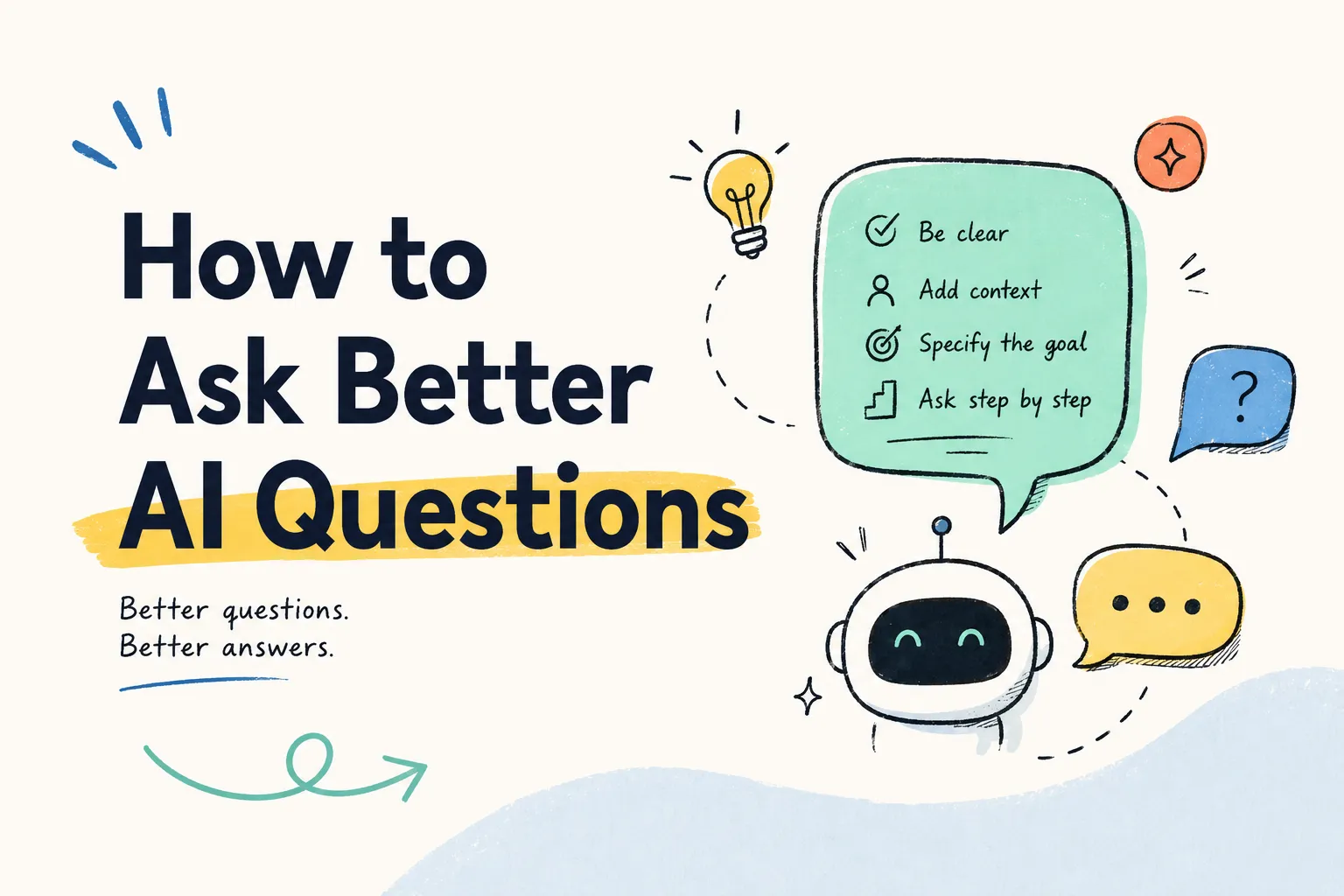
Giving iWeaver a specific goal usually produces a more useful result than simply asking:
Summarize this PDF.
Step 4: Ask iWeaver Follow-Up Questions
Once you have the first summary, you do not need to start over when you want more detail.
Continue asking iWeaver questions about the same PDF.
For example:
What are the three most important conclusions?
Explain Section 4 in simpler language.
Extract every percentage related to customer retention.
What evidence supports the author's main argument?
List every deadline and action item mentioned in the document.
Which sections discuss pricing?
What limitations does the report mention?
This is especially useful for long PDFs because you can move from a broad summary to specific information without reading the document from beginning to end.
If your main goal is exploring the document through questions, you can also use iWeaver's Chat with PDF workflow.
Step 5: Review and Organize the Result
Once you have the information you need, review the summary against the original PDF.
Pay particular attention to:
- Numbers and percentages
- Dates
- Names
- Research findings
- Contract terms
- Tables
- Charts
- Exceptions
- Limitations
For example, a report may say that revenue increased by 18%, while a note elsewhere explains that the comparison excludes a particular business unit.
A short summary may capture the headline number without all of its context.
After checking the important details, you can keep the result as a concise summary or reorganize it into notes, bullet points, or a visual structure.
If the PDF contains many connected concepts, you can also turn it into a PDF mind map to see the relationships between major topics more clearly.
What Should You Ask iWeaver to Summarize?
Different PDFs need different types of summaries.
| PDF type | Ask iWeaver to focus on |
|---|---|
| Research paper | Research question, method, results, limitations |
| Business report | Metrics, trends, risks, recommendations |
| Market research | Market size, customers, competitors, opportunities |
| Contract | Dates, obligations, fees, renewal, termination |
| Textbook | Concepts, definitions, examples, key relationships |
| Meeting material | Decisions, action items, owners, deadlines |
| Technical manual | Procedures, requirements, warnings, troubleshooting |
The goal is not to make every document as short as possible.
It is to extract the information you actually need.
How to Summarize a Long PDF With iWeaver
A 100-page PDF should not always be compressed directly into a five-line summary.
You may lose too much context.
A better approach is to summarize it in stages.
1. Ask iWeaver to Map the PDF
Start with:
Give me a section-by-section outline of this PDF. Explain what each section covers and identify the sections that appear most important.
This gives you a quick map of the document.
2. Go Deeper Into Important Sections
Once you know where the useful information is, ask:
Give me a detailed summary of Sections 2, 4, and 7. Preserve important statistics, evidence, conclusions, and limitations.
You can repeat this for other sections as needed.
3. Generate a Final Summary
After exploring the important parts, ask:
Based on the PDF and our discussion, create a final summary under these headings: main findings, supporting evidence, important numbers, risks, recommendations, and open questions.
This approach works especially well when you need to understand a long report rather than simply shorten it.
How to Summarize Multiple PDFs With iWeaver
Sometimes one PDF is not enough.
You may need to review several:
- Research papers
- Competitor reports
- Market studies
- Supplier proposals
- Financial reports
- Project documents
Upload the relevant documents to iWeaver and define what you want to compare.
For example:
Compare these reports in a table. Include the main conclusion, important statistics, recommendations, risks, and assumptions from each document.
Then continue with questions such as:
Where do these reports agree?
Which findings contradict each other?
Which customer problems appear in multiple documents?
Compare the market-growth estimates across the reports.
Which findings only appear in one source?
This is often more useful than generating several unrelated summaries.
How to Summarize a Scanned PDF With iWeaver
Some PDFs contain real text that you can highlight and copy.
Others are essentially collections of scanned page images.
For scanned documents, the text first needs to be recognized before it can be summarized. iWeaver provides PDF OCR workflows for scanned and image-based PDFs.
Typical examples include:
- Scanned books
- Printed contracts
- Old research papers
- Photocopied reports
- Receipts
- Image-based documents
After uploading the scanned PDF to iWeaver:
- Let iWeaver recognize the text.
- Check whether important text has been extracted correctly.
- Generate the summary.
- Ask follow-up questions as usual.
- Compare important details with the original scan.
Pay extra attention to tables, handwritten notes, unusual fonts, poor-quality scans, and complicated multi-column layouts.
6 PDF Summary Prompts to Use in iWeaver
You do not need a complicated prompt to get a useful result.
A good prompt simply explains what you need and how you want the result organized.
General PDF Summary
Summarize this PDF for someone who has not read it. Explain its purpose, main ideas, five key takeaways, important evidence, and conclusion. Do not add information that is not supported by the document.
Research Paper
Summarize this research paper under these sections: research question, methodology, sample or data, main findings, limitations, and implications. Clearly separate the authors' findings from their interpretation.
Business Report
Summarize this report for a manager preparing for a meeting. Focus on important metrics, major changes, risks, opportunities, recommendations, and decisions that require attention.
Contract Review
Extract the parties, effective dates, payment terms, responsibilities, renewal terms, termination conditions, penalties, and clauses that deserve closer review. Organize the result in a table.
Study Notes
Turn this PDF into revision notes. Include the main topics, key definitions, important examples, relationships between concepts, and ten questions I can use to test my understanding.
Long PDF
First create a section-by-section map of this PDF. Then identify the main claims, supporting evidence, important numbers, limitations, and unanswered questions. Highlight the sections that deserve closer reading.
Common Mistakes When Summarizing PDFs With AI
Asking Only “Summarize This PDF”
This gives iWeaver very little information about what matters to you.
Add your goal, document type, and preferred format.
Making the Summary Too Short
A three-sentence summary of a 150-page report may remove important evidence and context.
Start broad, then explore important sections separately.
Ignoring Tables and Charts
Some of the most useful information in a PDF may appear in figures rather than paragraphs.
Ask specifically about numerical data, charts, or tables when they matter.
Stopping After the First Summary
The first summary helps you understand the document.
Follow-up questions help you actually work with it.
Not Checking Important Details
AI can help you locate and organize information, but important numbers, dates, citations, clauses, and research findings should still be verified against the original PDF.
FAQ
How can I summarize a PDF with AI?
Upload the PDF to iWeaver, generate an initial summary, tell iWeaver what information you want to focus on, ask follow-up questions, and check important details against the source document.
Can iWeaver summarize long PDFs?
iWeaver is designed for document summarization and follow-up analysis, including longer PDFs and reports. For particularly long documents, start with a section outline and summarize the most relevant sections before creating a final overview.
Can iWeaver summarize scanned PDFs?
Yes. iWeaver includes OCR-based PDF workflows that can extract text from scanned or image-based documents before summarizing it.
Can I ask questions after iWeaver summarizes my PDF?
Yes. iWeaver's current PDF workflow allows you to continue asking questions about the uploaded document after generating the initial summary.
Can I summarize several PDFs together?
iWeaver supports multi-document reading workflows, making it possible to review and compare information across multiple documents.
How should I summarize a 100-page PDF?
Start by asking iWeaver for a section-by-section outline. Then summarize the sections that matter most, ask targeted follow-up questions, and finally generate a shorter overall summary.
What is the best prompt for summarizing a PDF?
There is no single best prompt. Tell iWeaver what type of PDF you uploaded, why you are reading it, what information matters, and how you want the result organized.
Summarize First, Then Read What Matters
The most useful way to summarize a PDF with AI is not to replace the original document with five bullet points.
Use iWeaver to understand the structure first.
Then identify the sections that matter, ask questions about the details, organize what you learn, and return to the original PDF whenever something needs verification.
That way, AI helps you spend less time searching through a long document and more time working with the information inside it.