A screenshot of a report, a photographed textbook page, a slide, or a handwritten note may contain useful information, but it is not always easy to search, copy, or summarize.
The simplest solution is to combine two capabilities:
- OCR, which reads visible text from an image.
- AI summarization, which turns that extracted text and visual context into a shorter, more useful explanation.
Modern multimodal tools can often do both in one workflow. The right method depends on whether you care mainly about the words, the visual layout, or both.
This guide shows three practical ways to summarize text from an image and explains how to get better results from difficult screenshots and scans.
What Does “Summarize Text from an Image” Mean?
Image summarization can refer to two different tasks.
The first is text extraction and summarization. The tool reads words from a photo or screenshot, then summarizes them.
The second is visual summarization. The tool also considers non-text elements such as charts, diagrams, labels, screenshots, or layout.
That difference matters.
If you upload a photo of a printed article, OCR may be enough. If you upload a dashboard with charts and annotations, extracting only the text can miss the main message.
Method 1: Use an AI Image Summarizer
The fastest workflow is to use a tool that can read the image and generate a summary in the same place.
With iWeaver's AI Image Summarizer, you can upload a screenshot, scanned page, chart, visual note, or other image and ask for a structured explanation.
Step 1: Upload the image
Use the clearest version available.
For a phone photo:
- Keep the page flat
- Avoid glare
- Fill the frame
- Make sure small text is readable
- Do not crop important labels
For a screenshot, capture the original interface at a readable scale instead of compressing it repeatedly.
Step 2: Tell the tool what you need
“Summarize this image” works, but a more specific instruction usually produces a better result.
For a document screenshot:
Extract the visible text and summarize it into five key points. Keep dates, names, numbers, and decisions exactly as shown.
For a chart:
Explain the main trend in this chart. Identify the highest and lowest values, notable changes, and any labels that affect interpretation.
For study notes:
Turn these notes into a clean study summary with definitions, key ideas, and three review questions.
Step 3: Verify critical details
Check names, prices, dates, percentages, formulas, and quotations against the original image.
OCR can misread characters when the image is blurry, handwritten, low contrast, or visually crowded.
Method 2: Extract the Text First, Then Summarize It
Sometimes you need the extracted text as a separate output.
In that case, use OCR first and summarization second.
Tools such as Google Cloud Vision, Azure AI Vision, and open-source OCR engines can extract printed or handwritten text. After extraction, paste the result into your preferred summarizer.
The workflow looks like this:
Image → OCR → Clean text → Summary
This method is useful when:
- You need to archive the full text
- The same OCR output will be used in several systems
- You are processing many images programmatically
- You want to correct OCR errors before summarization
- Compliance requires keeping the extracted source
The extra step also gives you more control. You can compare the OCR output with the image before asking AI to shorten it.
Method 3: Use a Multimodal AI Assistant
General-purpose multimodal assistants can also analyze uploaded images.
This works well when you want to move beyond a summary.
For example, you can upload a screenshot and ask:
Summarize the screen, then tell me which three items need action.
Or upload a photographed table and ask:
Recreate this table in Markdown, then summarize the three biggest differences between columns.
This conversational approach is useful because you can continue with follow-up questions.
The trade-off is that you should still distinguish between what is visibly present and what the model is inferring.
A good prompt is:
Describe only what is supported by the image. If any text is unclear, mark it as uncertain instead of guessing.
Best Prompt Templates for Image Summaries
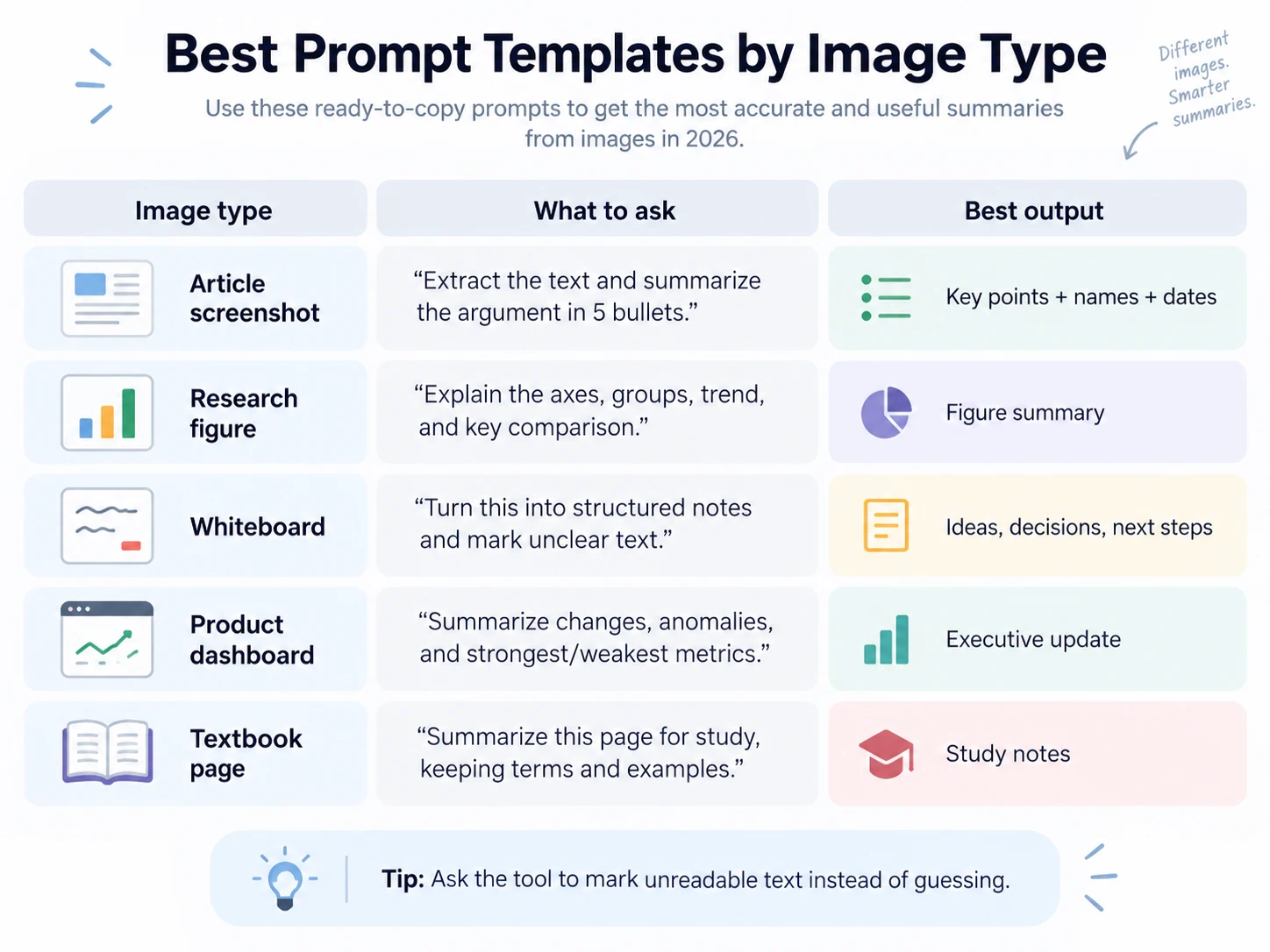
Screenshot of an article
Extract the readable text from this screenshot. Summarize the argument in 5 bullet points and keep all important names, dates, and statistics.
Research figure
Explain what this figure shows, including the axes, groups, major trend, and key comparison. Do not infer a conclusion that is not supported by the figure.
Meeting whiteboard
Turn this whiteboard into structured notes with sections for ideas, decisions, owners, deadlines, and unresolved questions. Mark any unreadable text.
Product dashboard
Summarize the dashboard for an executive. Focus on changes, anomalies, strongest and weakest metrics, and any visible dates or comparison periods.
Textbook photo
Summarize this page for study. Keep the core definition, supporting explanation, examples, and any terms I should memorize.
Handwritten notes
Transcribe the handwriting first. Mark uncertain words with [unclear]. Then create a concise summary without adding information that is not in the notes.
For handwriting-heavy material, a dedicated AI Handwriting Recognition workflow can be useful before summarization.
How to Improve a Bad Image Summary
Poor summaries often begin with poor inputs.
The text is too small
Crop the image into logical sections and process them separately. Do not enlarge a tiny screenshot and assume the missing detail will reappear.
The photo is skewed
Retake it from directly above the page or use a document-scanning mode that corrects perspective.
There is glare or shadow
Move the light source or change the camera angle. OCR performs better when character edges are clear.
The page uses multiple columns
Tell the tool to preserve reading order. Otherwise, text from two columns may be mixed together.
The screenshot contains a chart and text
Ask for two outputs:
- Extracted text
- Visual interpretation
Then ask for a combined summary.
The OCR made mistakes
Correct important words before summarizing. One wrong digit or name can change the meaning of the final output.
When Should You Use OCR Alone?
You do not always need AI summarization.
Use OCR alone when your goal is simply to:
- Copy text
- Search an image
- Digitize a printed page
- Build a searchable archive
- Import content into a database
Use OCR plus summarization when you need to understand, compare, prioritize, or reorganize the extracted information.
If you are deciding between different visual tools, see our guide to the best AI photo summarization tools.
What About Privacy?
Images often contain more sensitive information than users realize.
A screenshot may show:
- Email addresses
- Customer names
- Internal dashboards
- Account numbers
- Medical information
- Private chat messages
- Confidential documents
Before uploading an image, crop or redact information the tool does not need.
For workplace use, follow your company's approved tools and data policies rather than uploading confidential screenshots to a personal account.
Can AI Summarize Charts Without OCR?
Yes, multimodal systems can often interpret charts directly, but OCR is still useful for labels, legends, values, and annotations.
For accurate chart analysis, ask the tool to separate:
- What is visibly shown
- What can be calculated
- What is an interpretation
That makes it easier to detect unsupported conclusions.
Can AI Summarize Several Images Together?
Yes, if the tool supports multiple images or a multi-file workflow.
For a set of lecture slides, for example, you can ask for:
- One summary per slide
- A combined outline
- Repeated themes
- Important definitions
- Open questions
For long image collections, summarize in groups first and then create a second-level summary. This reduces the chance that details from early images get lost.
To summarize text from an image, first decide whether you need only the words or the full visual meaning.
Use an all-in-one image summarizer for the fastest workflow, OCR-first processing when you need clean extracted text, and a multimodal assistant when you want deeper follow-up.
Whichever method you choose, give the tool a clear task and verify critical details against the original image. Better inputs and better prompts matter just as much as the summarization model.